You can create events in My Calendar to plan activities, appointments, meetings and other important occasions. You can also invite other people to join you.
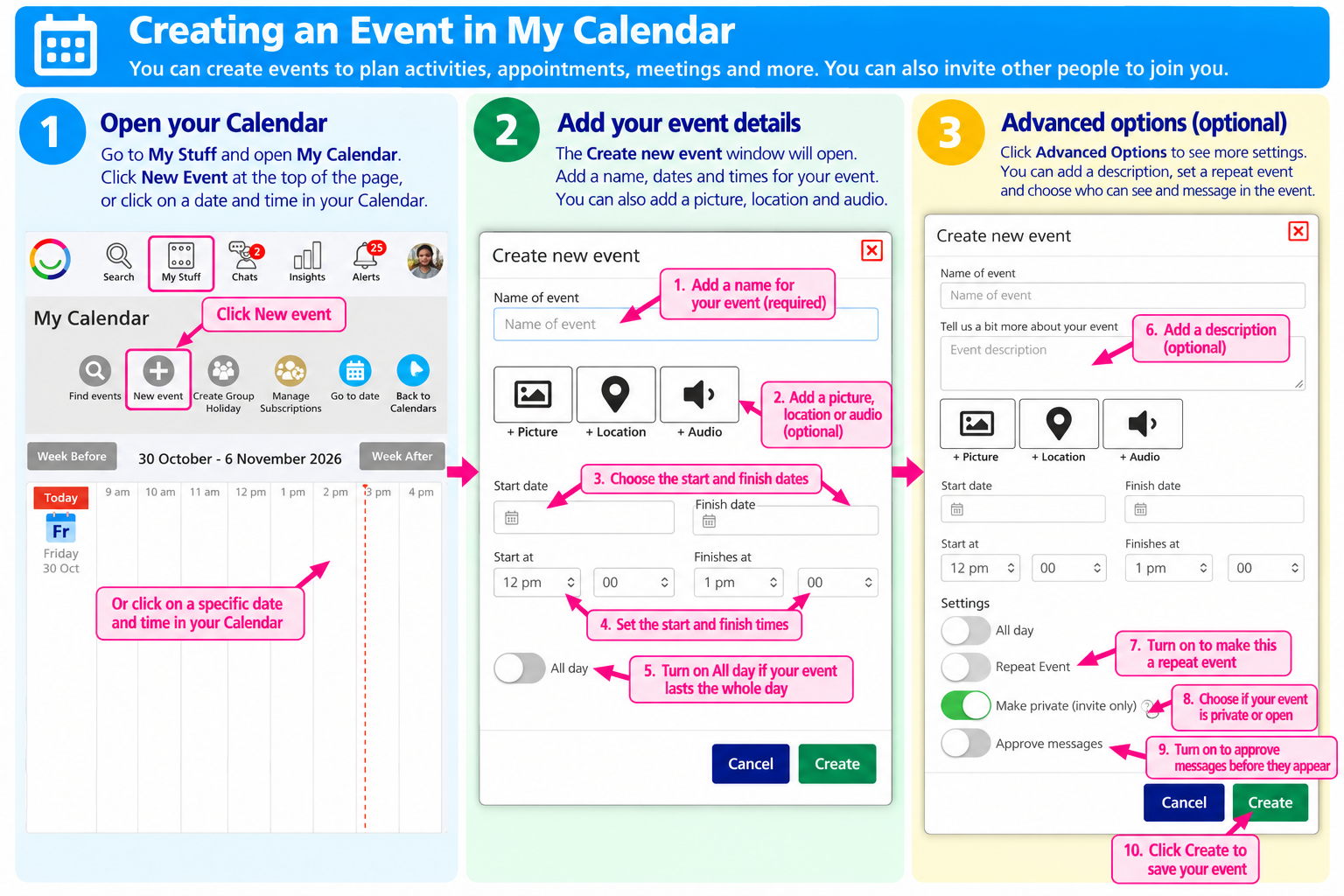
1. Create a New Event
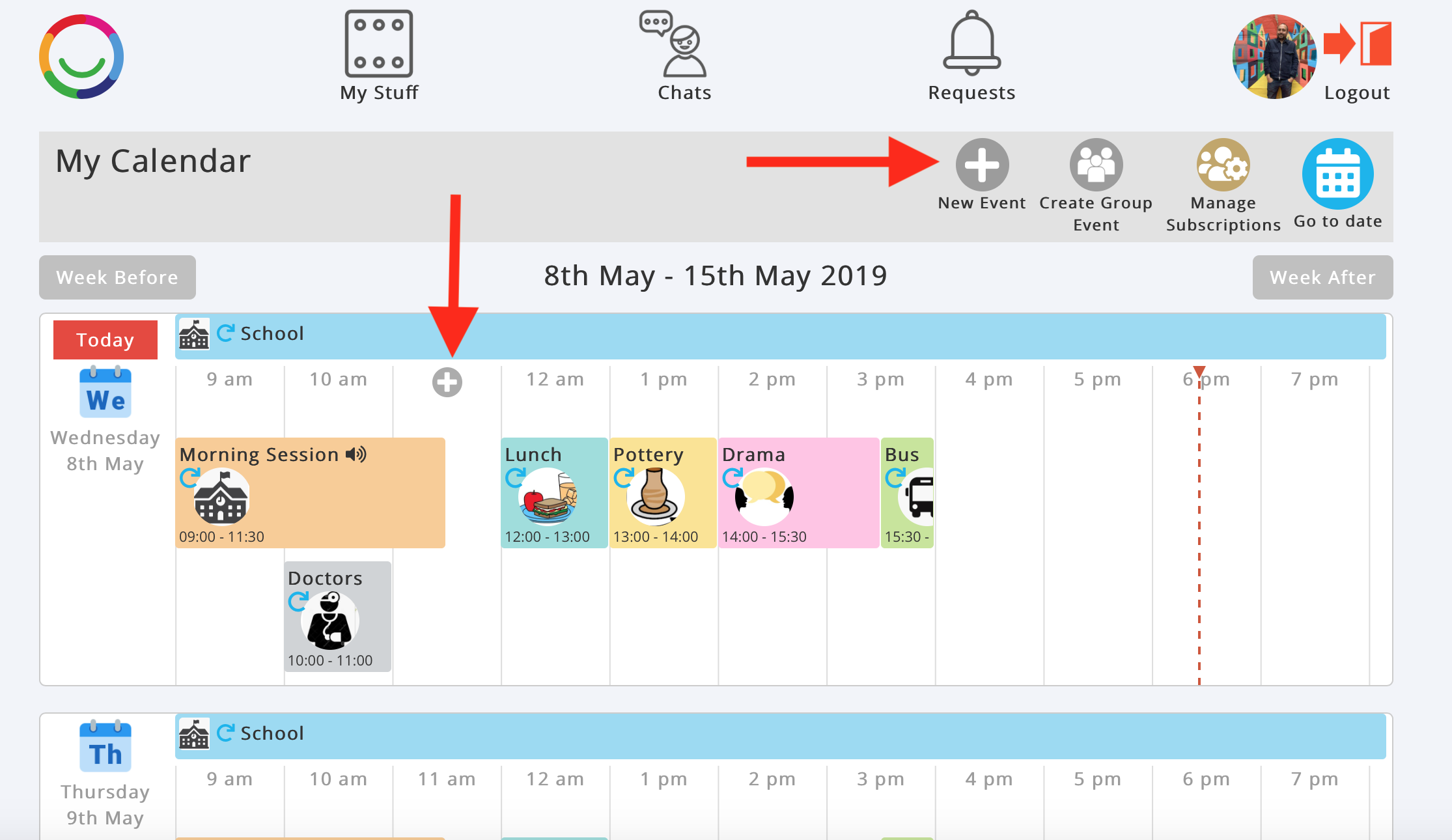
Go to My Stuff → My Calendar.
Click New Event at the top of the Calendar, or click on a particular date and time in your Calendar.
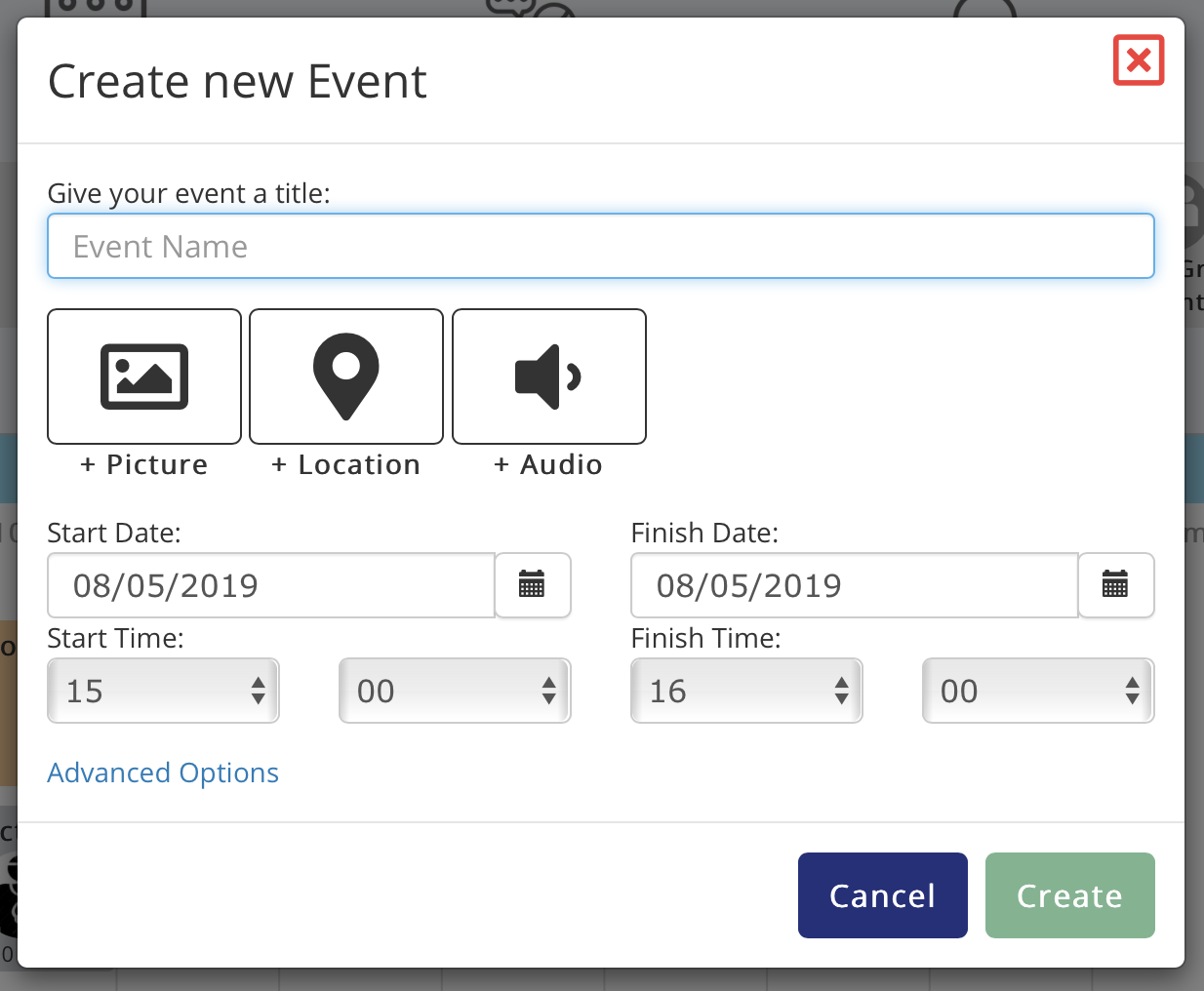
The Create new event window will open.
2. Add Your Event Details
Enter the information about your event:
Name of event – Give your event a name (required).
Event description – Add more information about the event (under Advanced Options).
+ Picture – Add a picture to represent the event.
+ Location – Add a location or map.
+ Audio – Record or upload an audio description.
Start date / Finish date – Choose when the event starts and ends.
Start at / Finishes at – Set the start and finish times.
All day – Switch this on if your event lasts the whole day.
3. Advanced Options
Click Advanced Options to see additional settings:
Repeat Event – Set up an event that happens regularly, such as every week.
Make private (invite only) – Control whether your event is private or available for others to discover.
Approve messages – Review and approve messages before they appear in the event.
You can also enter an Event description to explain what the event is about.
4. Save Your Event
When you're happy with your event details, click Create.
Your new event will appear in your Calendar.
You can open it to invite people, add attachments, set reminders, link Goals and share comments.
Tip: If you're creating an event for a particular day and time, click directly on that time in your Calendar to get started more quickly.
Was this article helpful?
That’s Great!
Thank you for your feedback
Sorry! We couldn't be helpful
Thank you for your feedback
Feedback sent
We appreciate your effort and will try to fix the article