You can share folders from My Media with people in your Circle or Groups. This allows them to access the photos, videos and other files in your shared folder and use them in their own Wikis, Diaries and other Multi Me features.
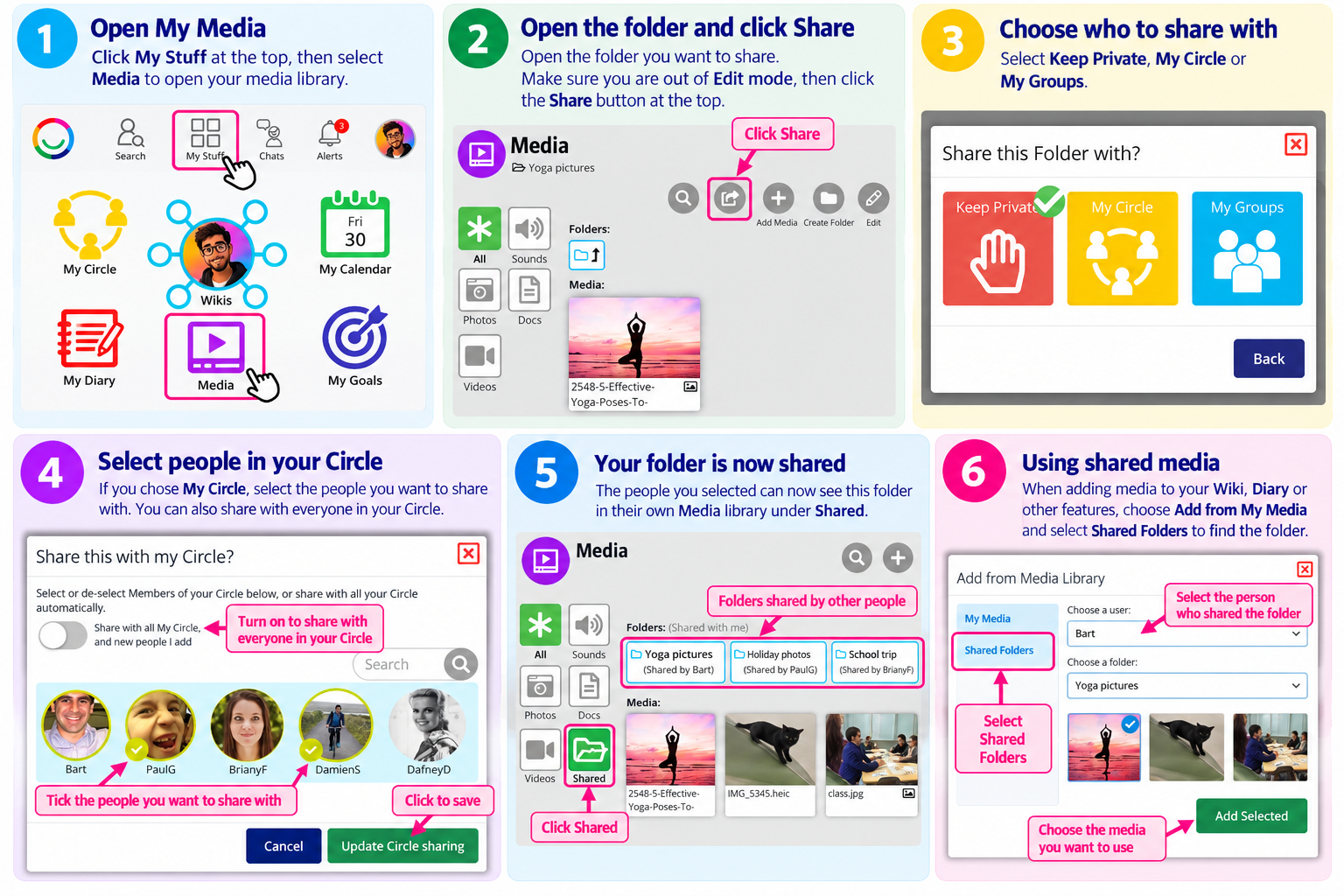
How to Share a Folder
Go to My Stuff and select Media.
Open the folder you want to share.
Make sure you are out of Edit mode.
Click the Share button at the top of the page.
Choose how you want to share your folder:
Keep Private – Only you can access the folder.
My Circle – Share with selected people in your Circle.
My Groups – Share with a Group.
If you choose My Circle, select the people you want to share with. A tick will appear beside their pictures.
Click Update Circle sharing to save your choices.
Tip: You can also switch on Share with all My Circle, and new people I add to automatically share the folder with everyone in your Circle, including new members.
Where Will People Find Your Shared Folder?
People you have shared the folder with can find it in their own My Media area.
They simply need to:
Open My Stuff → Media.
Select Shared to see folders that other people have shared with them.
Open your folder to view its contents.
Using Shared Media in Wikis, Diaries and Other Features
People can also use media from your shared folder when adding content to their own Wiki, Diary or other Multi Me features.
Choose Add from My Media when adding a photo, video or other media.
Select Shared Folders.
Choose the person who shared the folder.
Select the folder and the media they want to use.
This makes it easy to share useful photos, videos and documents without everyone needing to upload the same files separately.
Remember: You can return to the folder's Share settings at any time to change who has access.
Was this article helpful?
That’s Great!
Thank you for your feedback
Sorry! We couldn't be helpful
Thank you for your feedback
Feedback sent
We appreciate your effort and will try to fix the article