As a Buddy, you can control which folders in a Supported User's My Media library individual Circle members can access.
You can give people permission to view or edit specific folders, helping keep personal information private and secure.
How to Give Access to Media
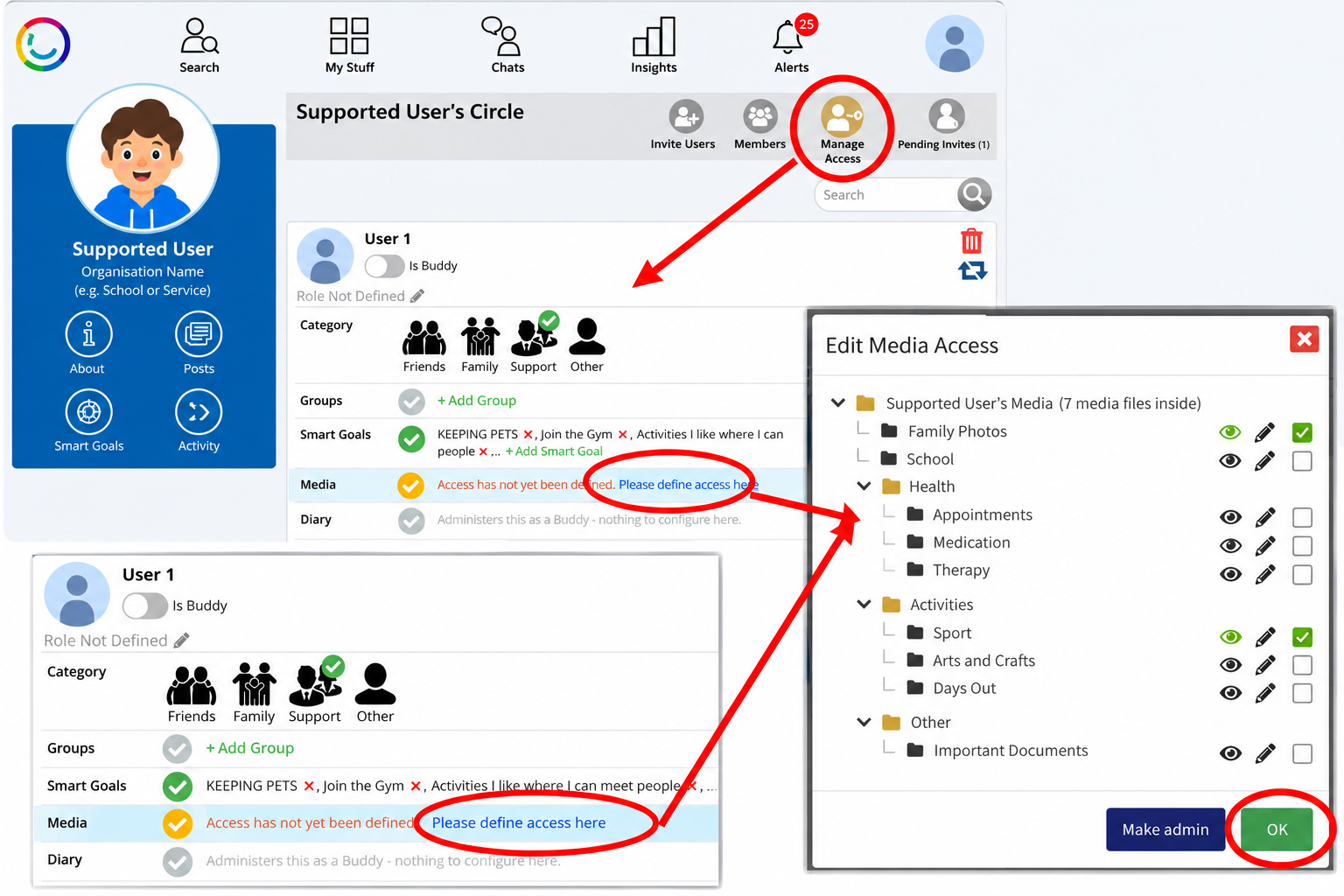
Log in as the Buddy and open the Supported User's Circle.
Click Manage Access.
Find the Circle member you want to give access to.
Under Media, click the grey tick icon to enable access.
Click Please define access here.
The Edit Media Access window will open, showing the Supported User's Media folders and subfolders.
Choose the permissions you want to give for each folder:
Eye icon – View: Allows the person to see the folder's content.
Pencil icon – Edit: Allows the person to add or change content in that folder.
Click OK to save your changes.
The Media access indicator will turn green once access has been configured.
Giving Administrator Access
If you want someone to manage the Supported User's entire Media library, click Make admin in the Edit Media Access window.
Important: Administrator access gives much wider control than viewing or editing individual folders. Only give this permission to people who need it.
Changing or Removing Access
You can update someone's Media permissions at any time.
Return to Manage Access.
Find the Circle member.
Open their Media access settings.
Change the permissions for individual folders and click OK.
To remove all Media access, turn off the green tick beside Media.
Important Information
You can give different Circle members access to different Media folders.
You do not have to share the entire Media library.
Folders must exist in My Media before you can configure access to them.
Buddies already have administrator access, so their Media permissions do not need to be configured separately.
This helps ensure that each person can access only the information they need.
Another Way to Manage Media Access
Access can also be defined directly from the Supported User’s Media → Manage Access area.
This provides another way to manage who can view or edit Media content.
Important
Circle members should only be given access to information they need.
Media folders may contain sensitive personal information, so check permissions carefully.
Buddies have administrative access to the Supported User’s Media.
Access permissions can be changed or removed at any time.
Was this article helpful?
That’s Great!
Thank you for your feedback
Sorry! We couldn't be helpful
Thank you for your feedback
Feedback sent
We appreciate your effort and will try to fix the article