You can make changes to your Diary Blog after creating an entry.
Multi Me's Edit Mode lets you update your entries, add captions, change stickers and arrange your photos and other media.
How to edit your Diary
Open My Diary.
Find the Diary Blog entry you want to change.
Turn on Edit Mode at the top of the Diary.
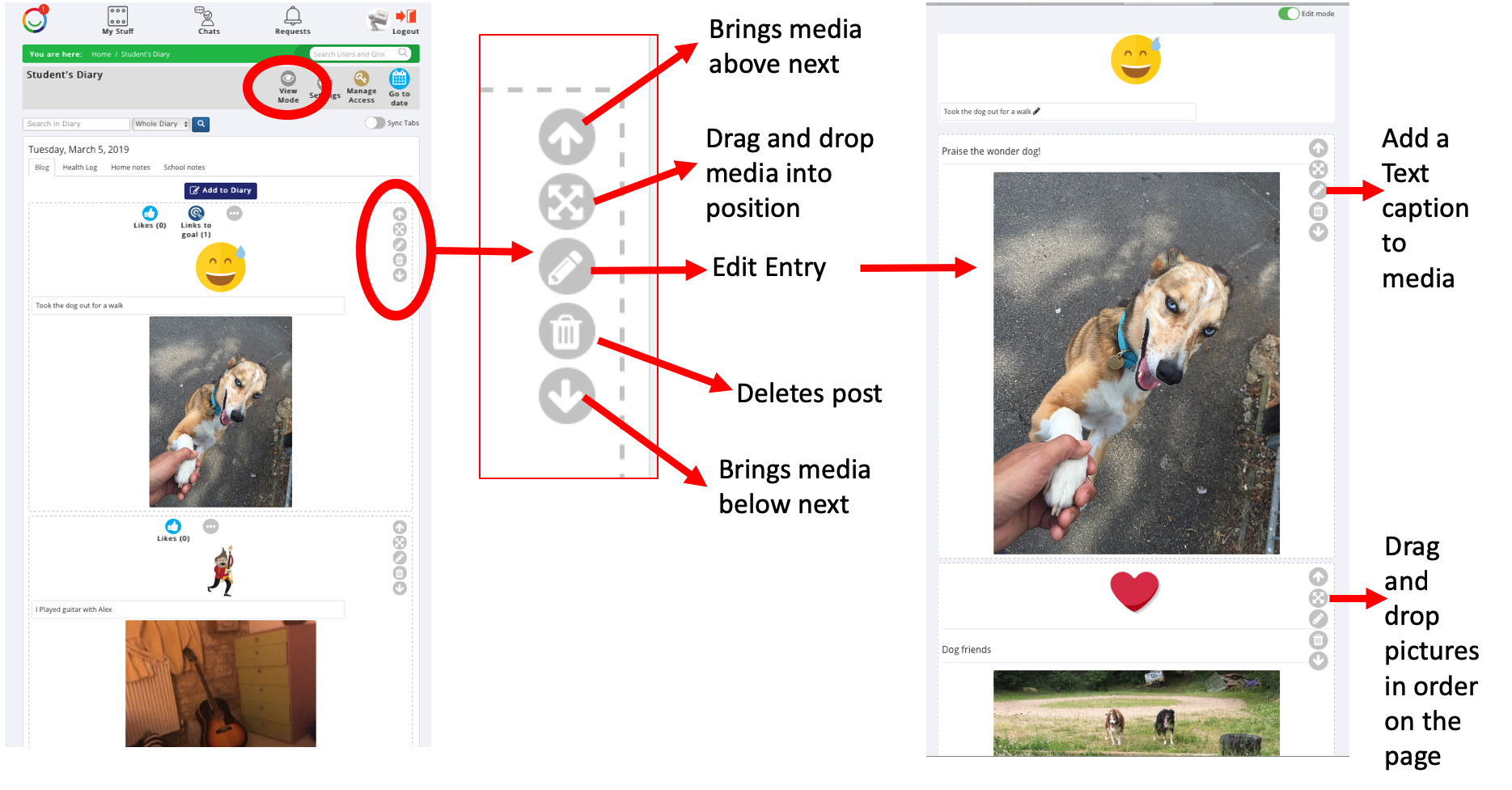
Use the editing buttons beside your entry to make changes.
What can I change?
When Edit Mode is switched on, you can:
Edit text – change the title or text in your entry.
Add or remove media – update the photos, videos and other media in your entry.
Add captions – include text alongside individual photos or videos.
Change stickers – replace or remove a sticker.
Rearrange items – move photos, videos and other content up or down.
Reorder entries – change the order of entries on your Diary page.
Delete an entry – remove an entry you no longer want.
Moving items around
In Edit Mode, you can use the up and down arrows to change the order of items.
Where available, you can also use the drag-and-drop button to move media into a different position.
Adding a caption to a photo or video
Turn on Edit Mode.
Find the photo or video you want to add a caption to.
Select the Edit (pencil) icon beside it.
Add or change the caption.
Save your changes if prompted.
Finished editing?
When you've finished making changes, turn off Edit Mode to return to the normal Diary view.
Need help?
If you can't edit a Diary entry, you may not have permission to make changes.
Ask your Buddy or Portal Administrator for help.
Was this article helpful?
That’s Great!
Thank you for your feedback
Sorry! We couldn't be helpful
Thank you for your feedback
Feedback sent
We appreciate your effort and will try to fix the article