The My Stuff dashboard helps you find and use the main features of Multi Me.
Your dashboard may look different depending on your account and your role.
How to open your My Stuff dashboard
Log in to Multi Me.
Look at the navigation bar at the top of the screen.
Click the My Stuff icon (the four squares).
Your My Stuff dashboard will open.
My Stuff for Supported Users
If you are a Supported User, your dashboard is designed around you.
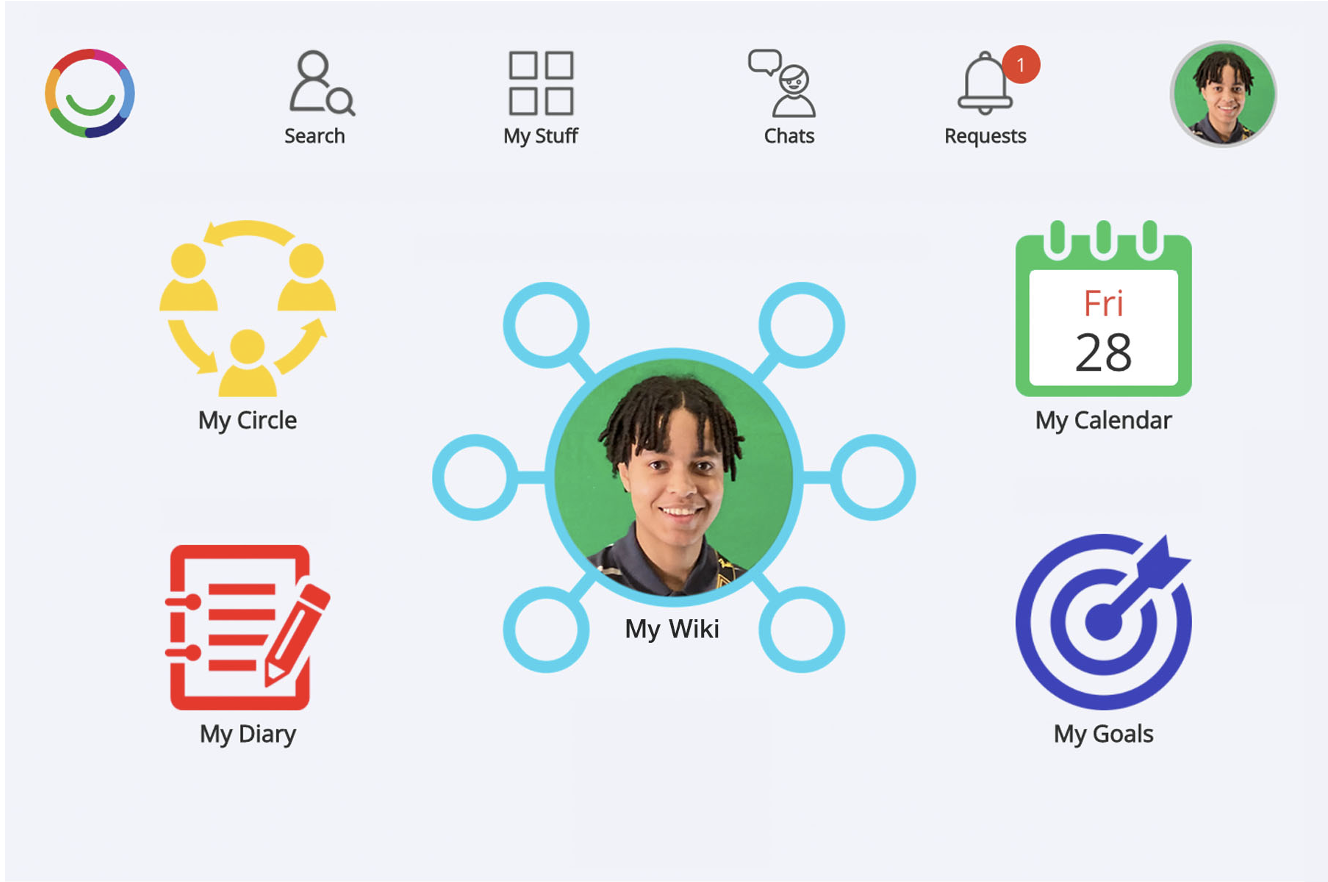
You can select the different features to explore and manage your information.
My Wiki – Share information about yourself, your life and what matters to you.
My Diary – Record your experiences, activities and how you're feeling.
My Circle – Connect with people who are important to you.
My Goals – Set goals, work towards them and celebrate achievements.
My Calendar – Keep track of events, appointments and activities.
Your Buddy or support worker can help you explore these features.
My Stuff for Buddies, staff and Portal Administrators
If you are a Buddy, member of staff or Portal Administrator, your dashboard may look like this:
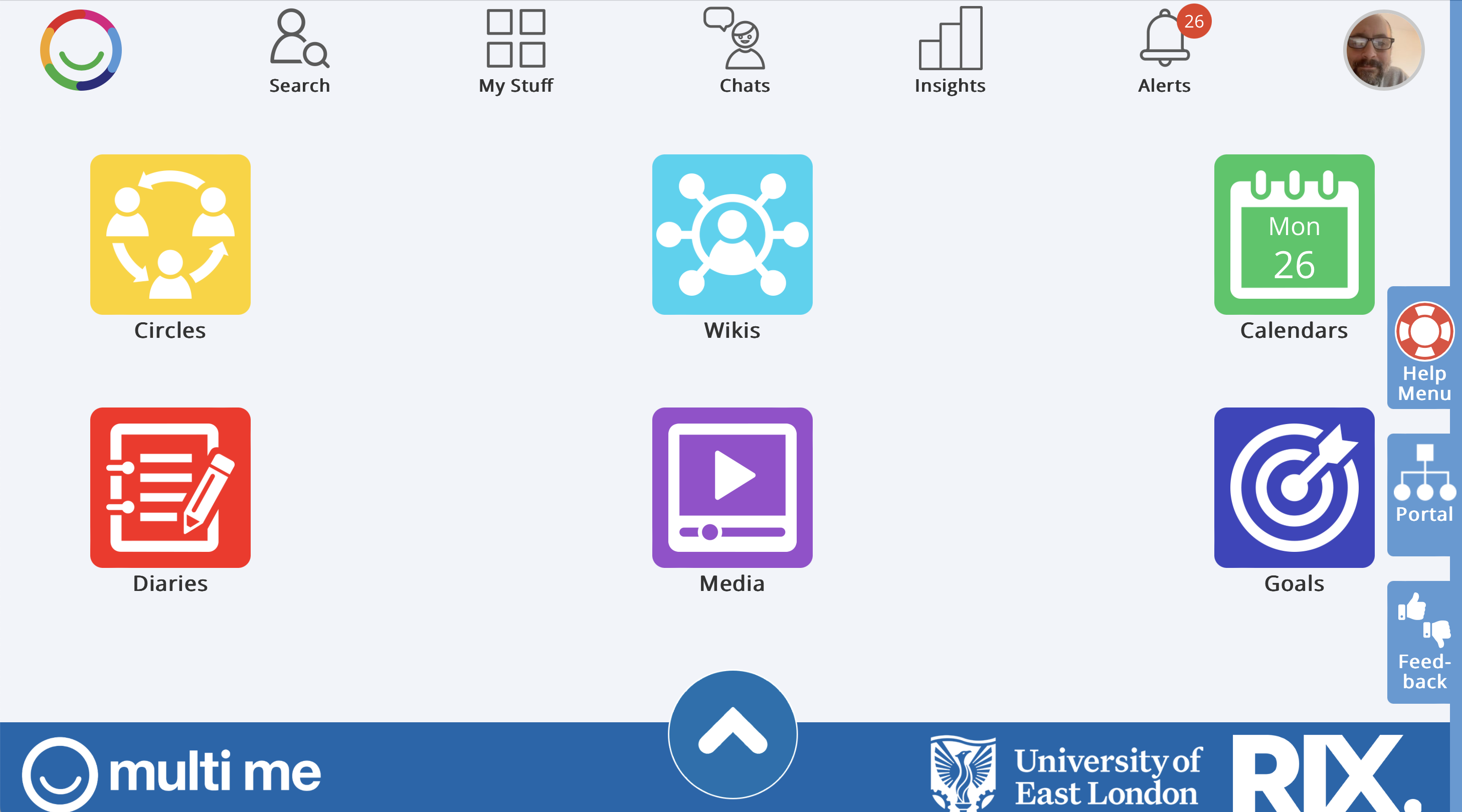
The dashboard has six main areas:
Circles – Access and manage Circles you have permission to work with.
Wikis – Find and work with personal Wikis.
Diaries – Access Diaries you have permission to view or edit.
Media – View and manage Media where you have access.
Calendars – View and manage events and activities.
Goals – Access Goals and support people with their plans and achievements.
Select a tile to open that area.
What you can see and do depends on the permissions you have been given.
Other useful features
Across the top of Multi Me, you may also see:
Search – Find people and information.
Chats – Send and receive messages.
Alerts or Requests – Check notifications and requests that need your attention.
Insights – View information and progress, if you have permission.
Your profile picture – Access your account and settings.
The options available may vary depending on your account.
Need help?
If you're unsure how to use your dashboard, ask your Buddy, support worker or Portal Administrator.
You can also contact Multi Me Support through this Helpdesk.
Was this article helpful?
That’s Great!
Thank you for your feedback
Sorry! We couldn't be helpful
Thank you for your feedback
Feedback sent
We appreciate your effort and will try to fix the article