You can log in to Multi Me using a computer, laptop, tablet or smartphone.
1. Open Multi Me
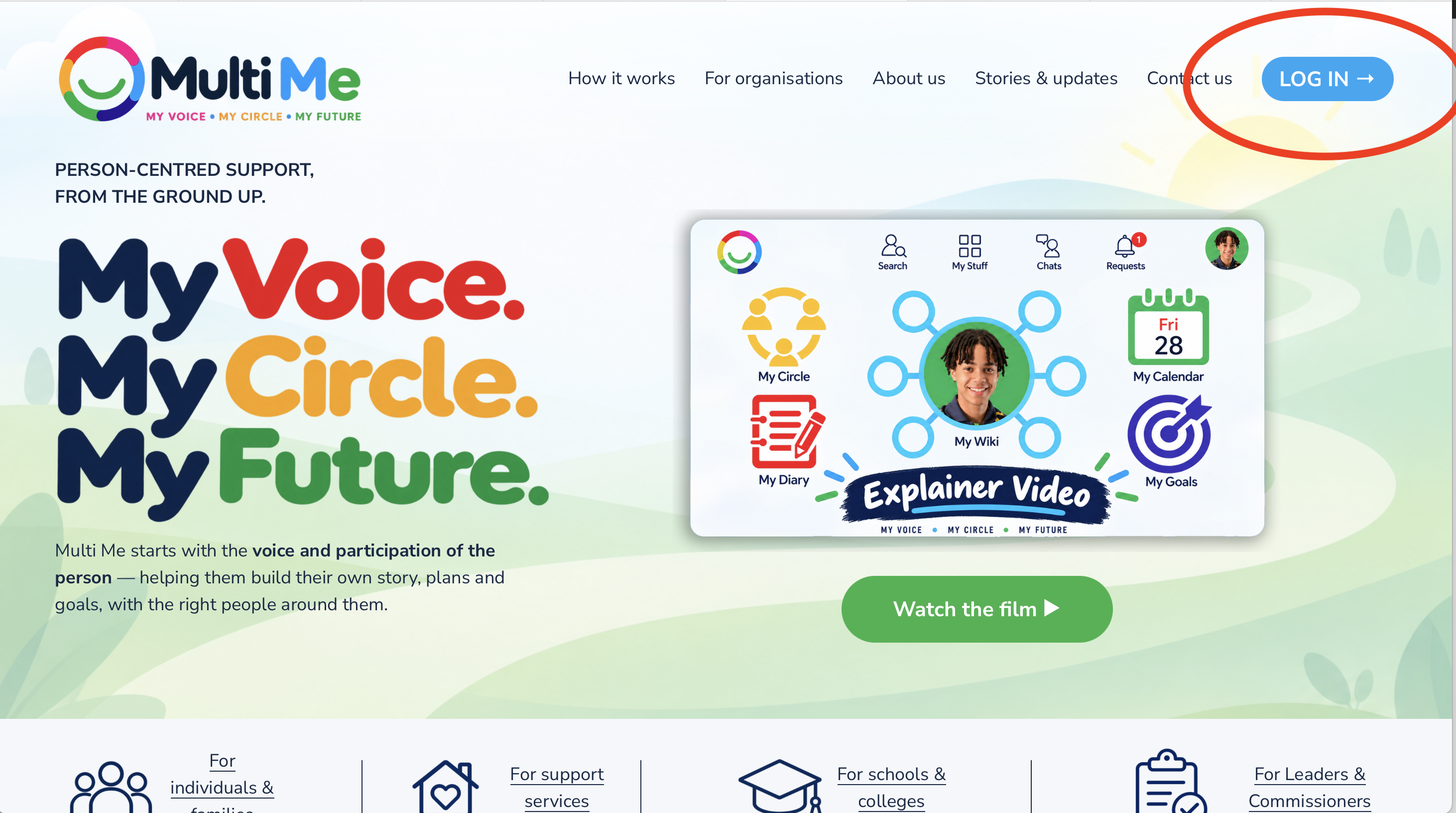
Visit www.multime.com and select the blue LOG IN button at the top of the page.
You can also go directly to my.multime.com.
2. Choose how to sign in
Multi Me offers different ways to sign in.
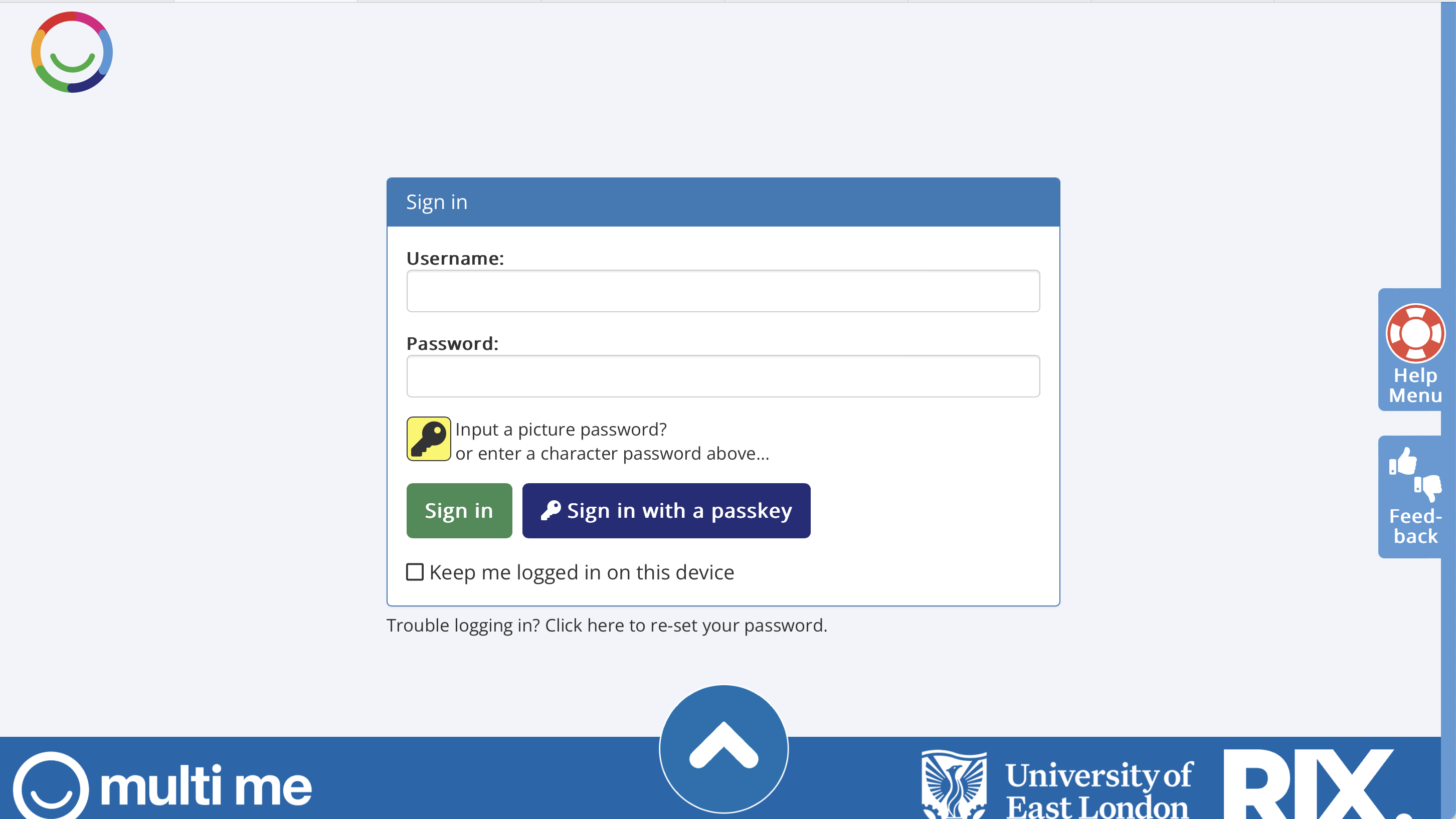
Option 1 – Username and password
Enter your username.
Enter your password.
Select the green Sign in button.
Remember that passwords are case-sensitive. Capital and lowercase letters are different.
Option 2 – Picture password
If you have a picture password set up:
Enter your username.
Select Input a picture password?
Choose your pictures in the correct order.
Select OK to confirm your picture password.
Select Sign in to access your account.
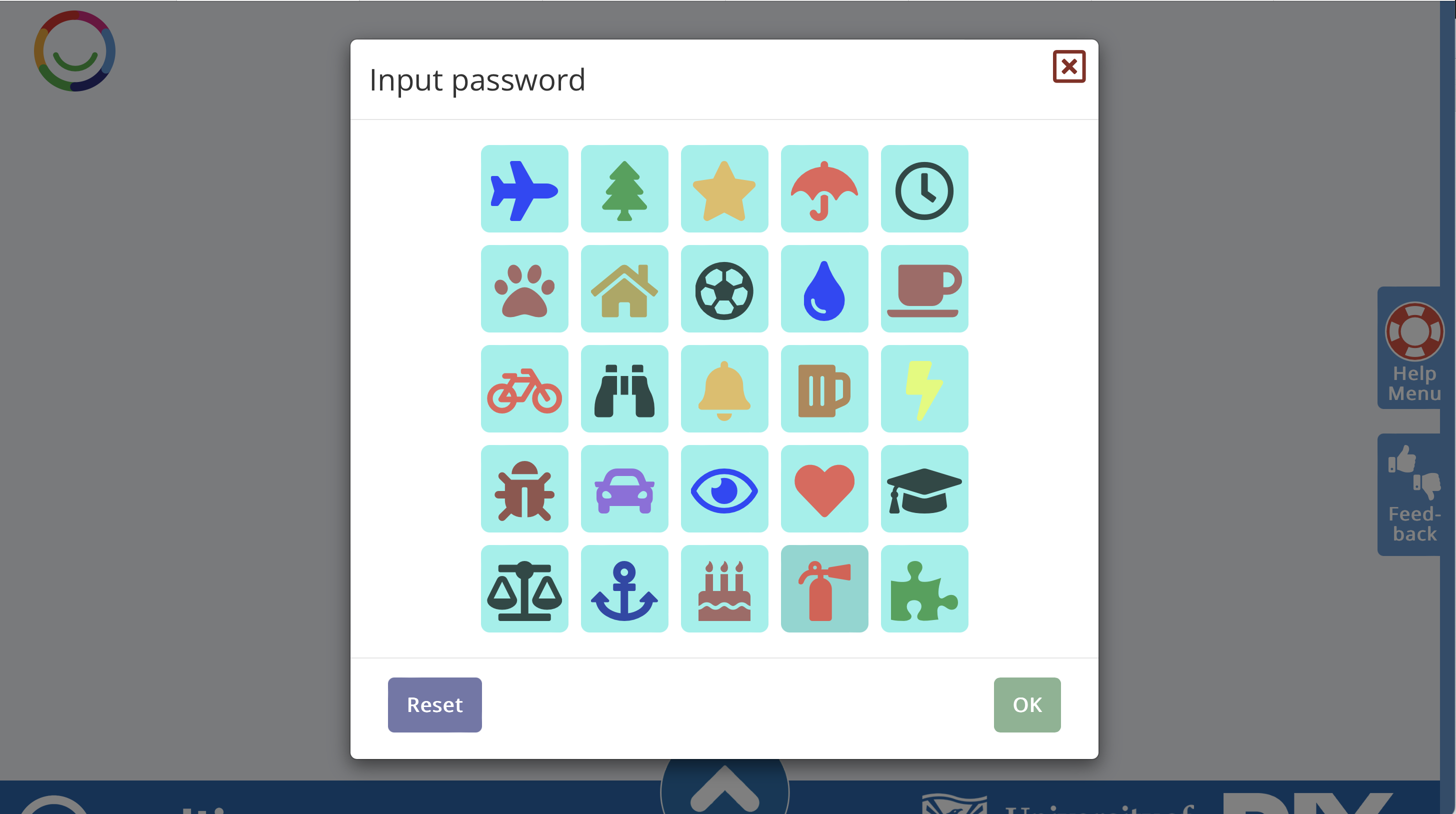
A picture password can make signing in easier if you find typing or remembering a written password difficult.
Option 3 – Sign in with a passkey
If you have already set up a passkey, select Sign in with a passkey.
Follow the instructions on your device. Depending on your device, you may be able to use Face ID, a fingerprint or your device's security code.
3. Complete any security checks
You may be asked to complete an extra security step, such as entering a verification code sent to your email or using an authenticator app.
Follow the instructions on your screen.
4. Start using Multi Me
Once you've signed in, you can explore your Multi Me account.
You can access features such as your Wiki, Diary, Goals, Calendar, Media and Circle.
Having trouble signing in?
If you've forgotten your password, select Trouble logging in? Click here to re-set your password below the sign-in box.
You can also ask your Buddy, support worker or Portal Administrator for help.
Important: Your Multi Me account is separate from the Helpdesk. You cannot use your Multi Me username and password to sign in to the Helpdesk.
Need more help?
Contact Multi Me Support through this Helpdesk if you're still having problems accessing your account.
Was this article helpful?
That’s Great!
Thank you for your feedback
Sorry! We couldn't be helpful
Thank you for your feedback
Feedback sent
We appreciate your effort and will try to fix the article