You can download a copy of all the photos, videos, audio recordings and other files stored in your My Media area.
Your files will be collected into a ZIP archive, including any folders and subfolders you've created.
How to download your media
Sign in to Multi Me.
Open My Account Settings.
Select the Profile Settings tab.
Find and click Request Archive of my Media.
Multi Me will prepare your media archive. This may take up to 24 hours.
When your archive is ready, you'll receive a notification.
Return to My Account Settings and use the download link to save the archive to your device.
What happens when I download it?
Your media will be downloaded as a ZIP file.
You can open or extract the ZIP file on your computer to access your photos, videos, audio recordings and other files.
Your existing folder structure will be included.
Downloading your media does not delete it from Multi Me.
Can a Buddy download a Supported User's media?
Yes. An authorised Buddy can request a media archive for a Supported User they manage.
To do this:
Open the Supported User's profile.
Select Manage User.
Find the option to request their media archive.
Follow the instructions to download the archive when it's ready.
Need help?
If your archive isn't ready after 24 hours, or you're having difficulty downloading it, please contact the Multi Me support team.
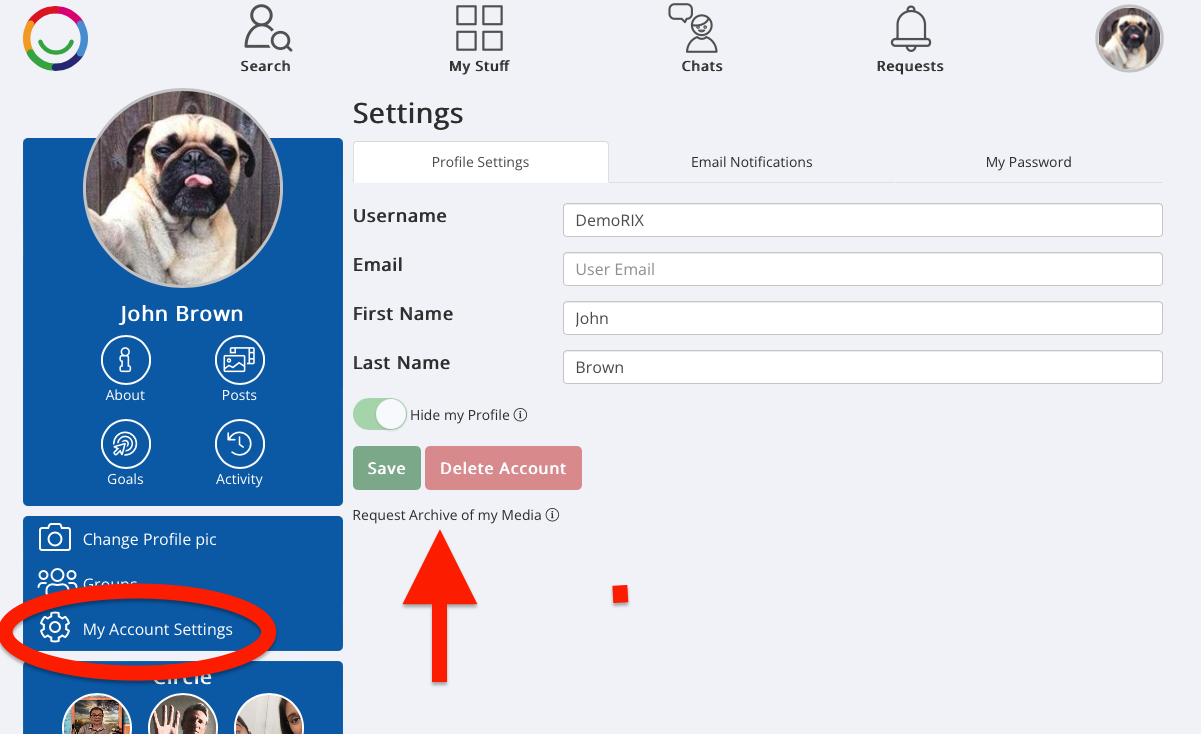
1. Click the link to request to download your media
Was this article helpful?
That’s Great!
Thank you for your feedback
Sorry! We couldn't be helpful
Thank you for your feedback
Feedback sent
We appreciate your effort and will try to fix the article