You can record your voice or make a video directly in Multi Me using your phone, tablet or computer.
This is useful if you prefer speaking or showing something rather than typing.
How do I record audio or video in Multi Me?
Open the area of Multi Me where you want to add your recording.
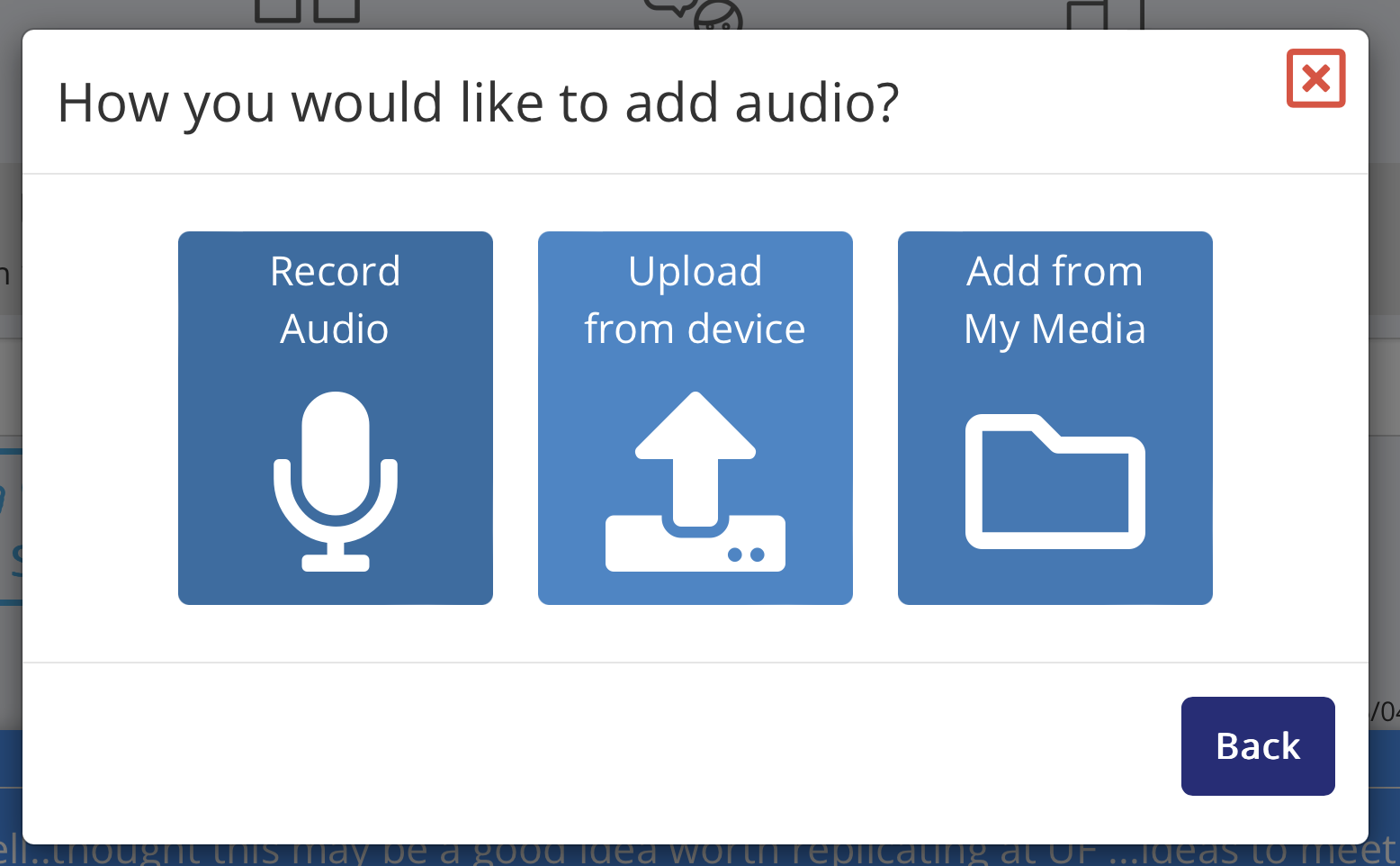
Select the option to Add Audio.
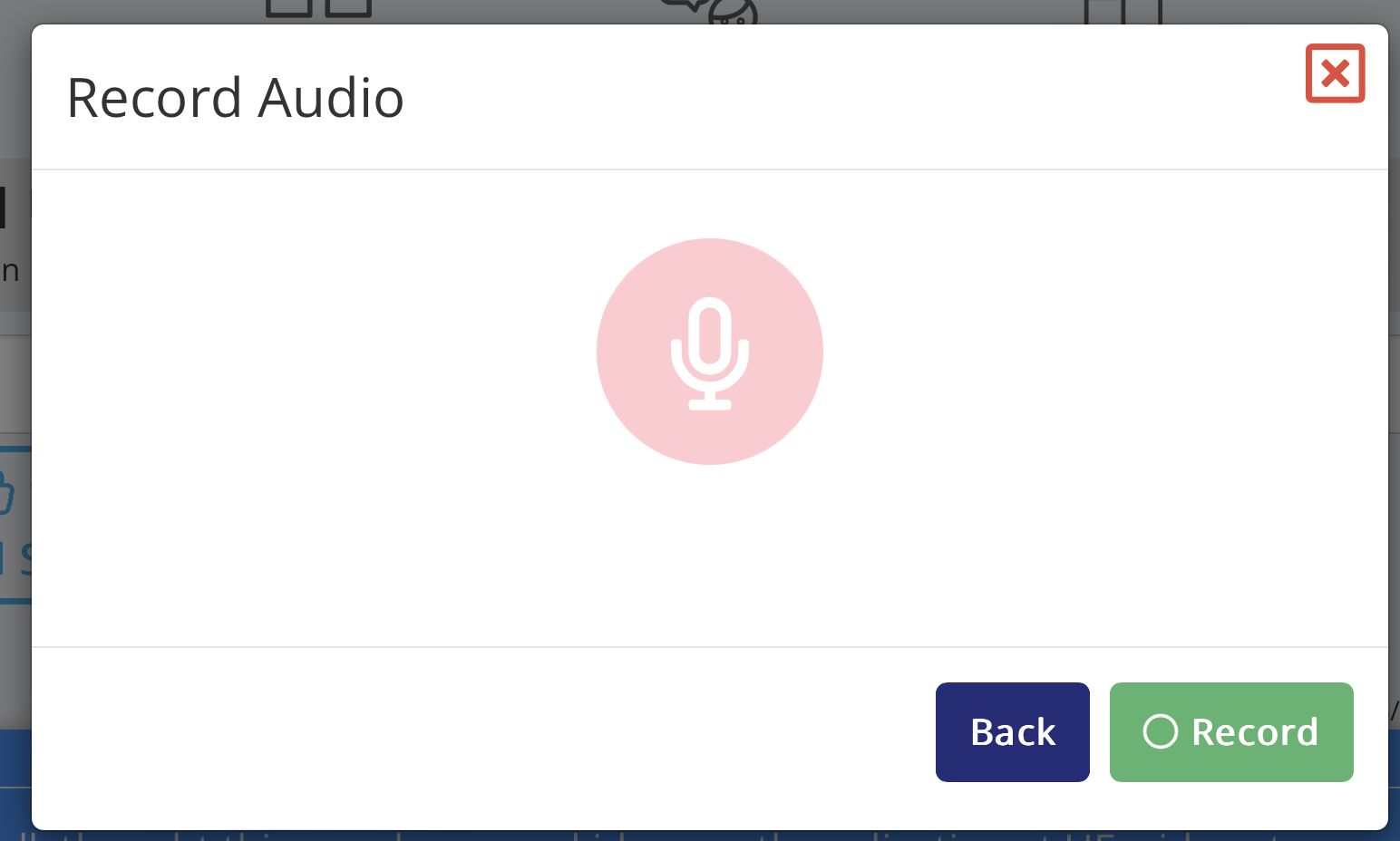
Choose Record Audio.
If your browser asks for permission to use your microphone, select Allow.
Click Record and start speaking.
Follow the on-screen options to finish and add your recording.
Other ways to add audio
You can also choose:
Upload from device – add an audio file already saved on your phone, tablet or computer.
Add from My Media – use an audio recording you've previously saved in Multi Me.
What about video?
You can also record video directly in supported areas of Multi Me.
Choose the option to add video, then follow the on-screen instructions. Your browser may ask for permission to use your camera and microphone.
Having trouble recording?
If your microphone or camera isn't working:
Check that your browser has permission to use it.
Make sure you're using an up-to-date web browser.
Try refreshing the page and recording again.
Ask your Buddy or Portal Administrator for help if needed.
Was this article helpful?
That’s Great!
Thank you for your feedback
Sorry! We couldn't be helpful
Thank you for your feedback
Feedback sent
We appreciate your effort and will try to fix the article