You can add as many Pages as you like to a Wiki Section. Each Page can contain a picture or video, text and audio to help tell your story.
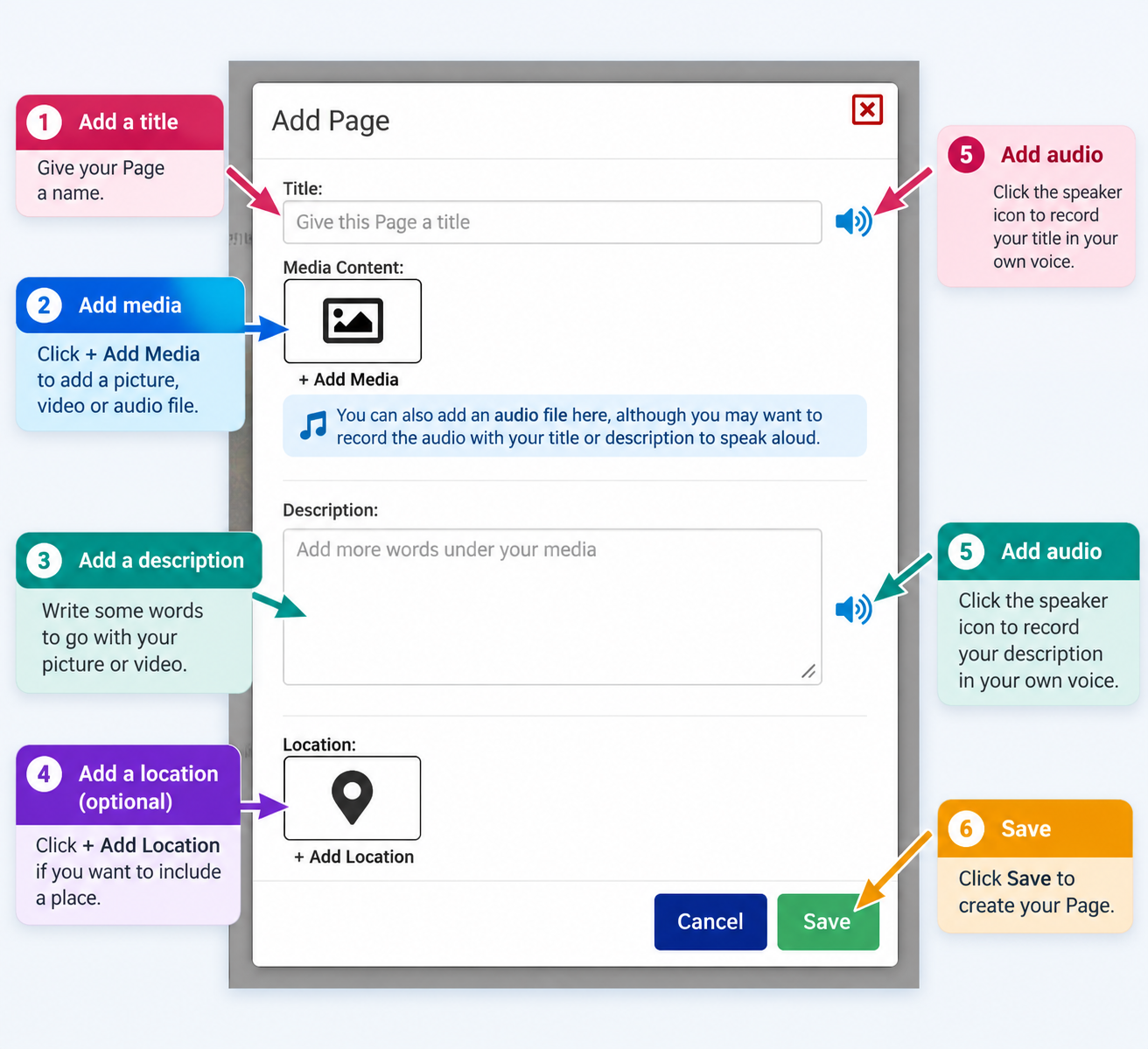
Steps to create a new Wiki Page
Open My Wiki and go to the Section where you want to add a Page.
Click Edit to switch on editing mode.
Click the green + Add Page button anywhere in the Section.
The Add Page window will open. You can now add:
Title – Give your Page a name.
Media Content – Click + Add Media to add a picture, video or audio file. You can also record audio alongside your Title or Description to read your words aloud in your own voice.
Description – Write some words to go with your media.
Location – Click + Add Location if you want to include a place.
Use the blue speaker icons beside the Title and Description to add audio recordings in your own voice, so other people can listen to your words.
Click Save to create your Page.
Click Finish Editing when you're done.
Adding more Pages
You can create multiple Pages within the same Wiki Section. Each Page appears below the previous one, and people can simply scroll down to view them.
You can combine pictures, videos, written descriptions and your own voice recordings to make your Wiki more personal and accessible.
Was this article helpful?
That’s Great!
Thank you for your feedback
Sorry! We couldn't be helpful
Thank you for your feedback
Feedback sent
We appreciate your effort and will try to fix the article