Wiki Sections help you organise your Wiki into different topics, such as My Family, My Interests, My Communication or My Support Needs.
Each section can contain Wiki Pages with pictures, videos, audio and text.
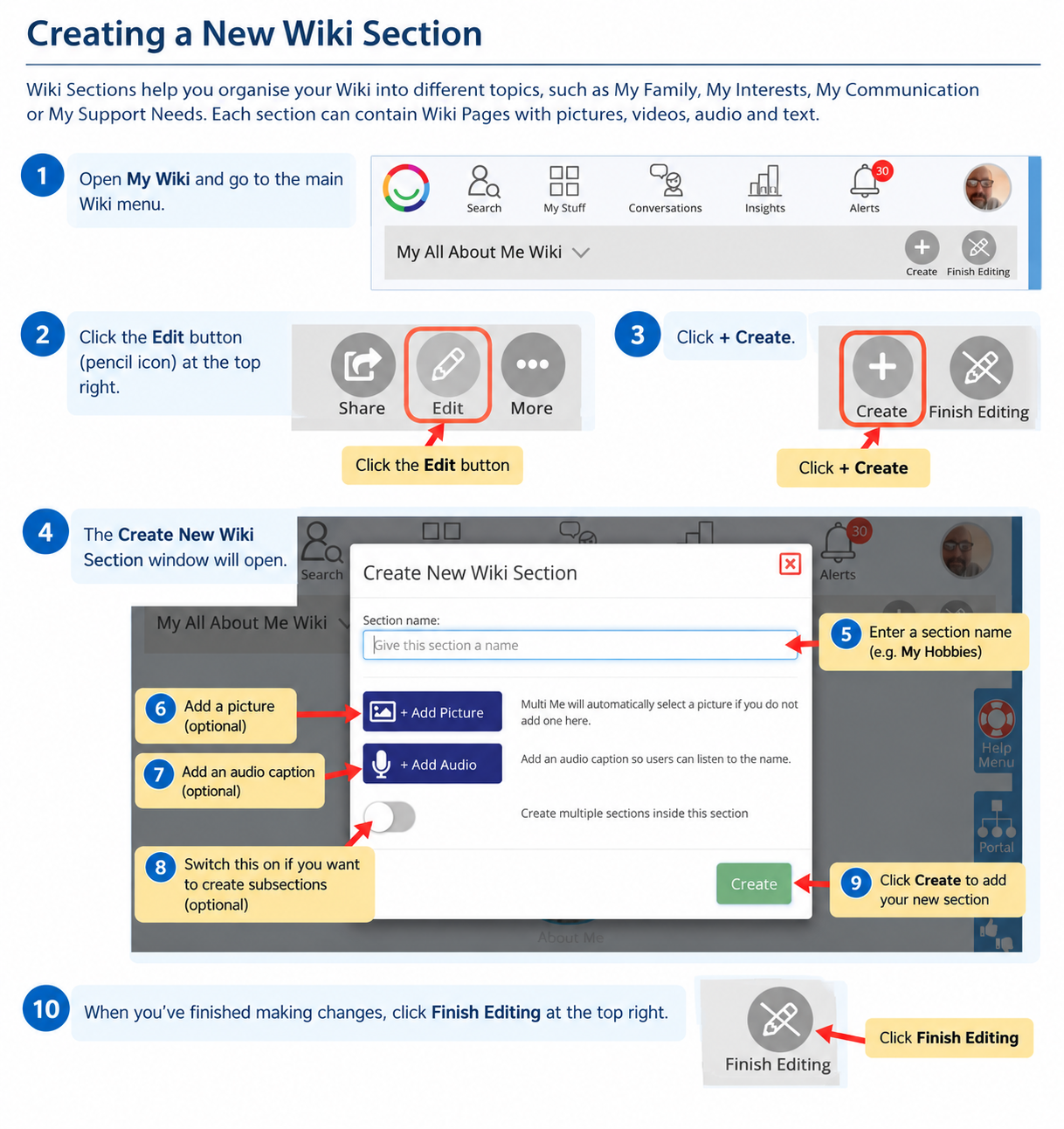
How to create a new Wiki Section
Open My Wiki and go to the main Wiki menu.
Click the Edit (pencil) button at the top right.
Click + Create.
The Create New Wiki Section window will open.
Enter a Section name, such as My Hobbies or People Important to Me.
You can also personalise your section using the options below.
Click Create to add your new section to your Wiki.
When you've finished making changes, click Finish Editing.
Personalising your Wiki Section
When creating a section, you can choose to:
Add Picture – choose a picture to represent your section. If you don't add one, Multi Me will automatically select a picture.
Add Audio – record an audio caption so people can listen to the section name.
Create multiple sections inside this section – switch this on if you want to organise your content into smaller subsections.
You don't need to use all these options. You can start with a name and add more details later.
What happens next?
Your new section will appear on your Wiki menu.
Click it to open the section and start adding your Wiki Pages.
You can create as many sections as you need to tell your story and organise your information in a way that makes sense to you.
Need help?
If you need support creating or organising your Wiki, ask your Buddy or someone supporting you.
Was this article helpful?
That’s Great!
Thank you for your feedback
Sorry! We couldn't be helpful
Thank you for your feedback
Feedback sent
We appreciate your effort and will try to fix the article