As a Buddy, you can manage which Circle members can view or edit a Supported User’s Diary, including individual Diary folders.
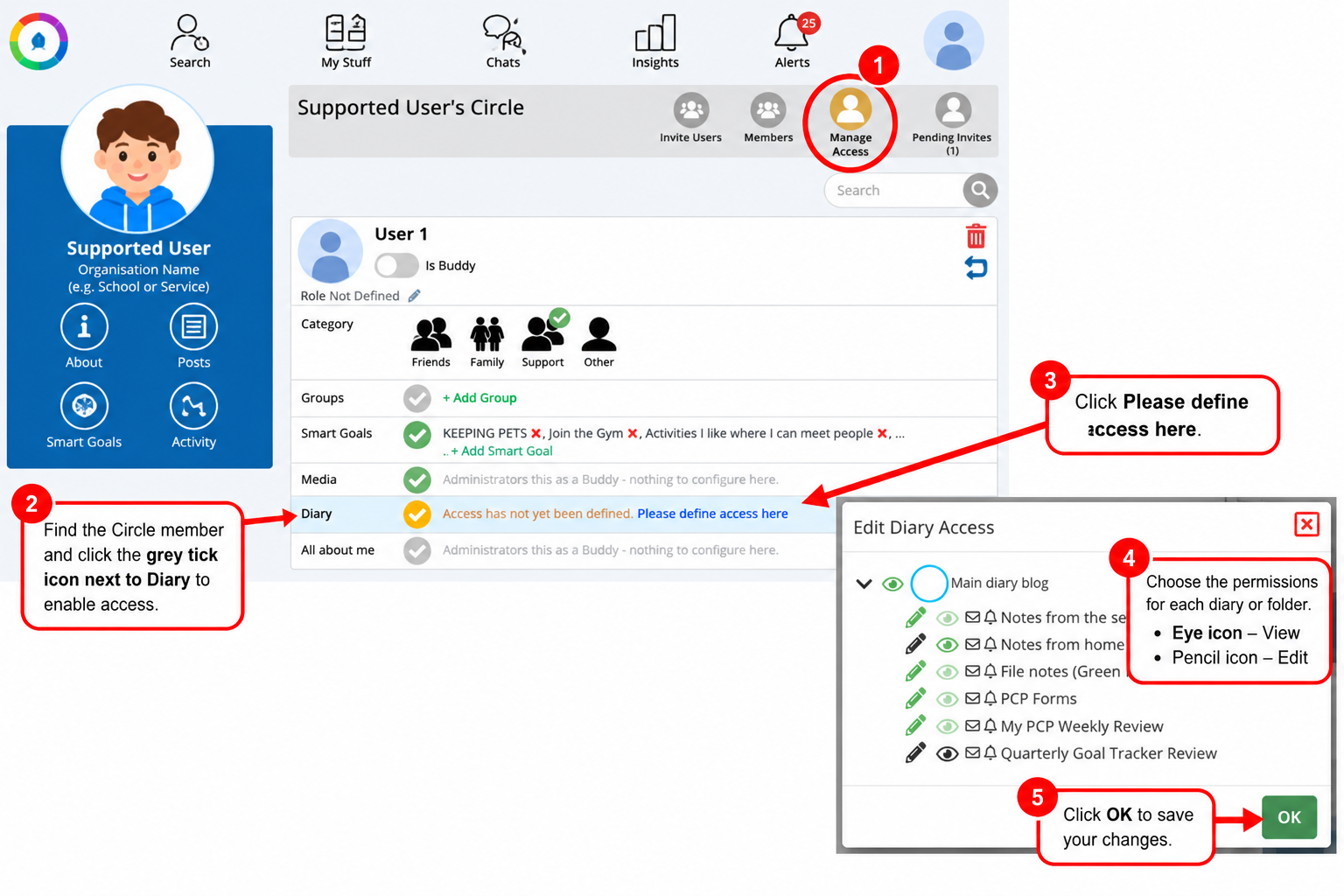
How to Manage Diary Access
Log in as the Buddy of the Supported User.
Open the Supported User’s Circle.
Click Manage Access.
Find the Circle member you want to give access to.
In the Diary section, click the access tick to enable access.
Click Please define access here to open the Edit Diary Access window.
Use the icons beside each Diary folder to set permissions:
Eye icon – Allow the person to view entries.
Pencil icon – Allow the person to create or edit entries.
Use the arrows to expand or collapse folders and manage access to individual folders.
Click OK to save your changes.
Understanding the Access Icons
Green icons indicate that access is enabled.
Grey or dark icons indicate that access is not enabled.
You can give different permissions to different Diary folders.
This allows you to share appropriate information with different people in the Supported User’s Circle.
Another Way to Manage Diary Access
Access can also be defined directly from the Supported User’s Diary → Manage Access area.
This provides another way to manage who can view or edit Diary content.
Important
Circle members should only be given access to information they need.
Diary folders may contain sensitive personal information, so check permissions carefully.
Buddies have administrative access to the Supported User’s Diary.
Access permissions can be changed or removed at any time.
Was this article helpful?
That’s Great!
Thank you for your feedback
Sorry! We couldn't be helpful
Thank you for your feedback
Feedback sent
We appreciate your effort and will try to fix the article