You can edit someone's details in your Circle or remove them if you no longer want them to be connected.
Editing someone's details
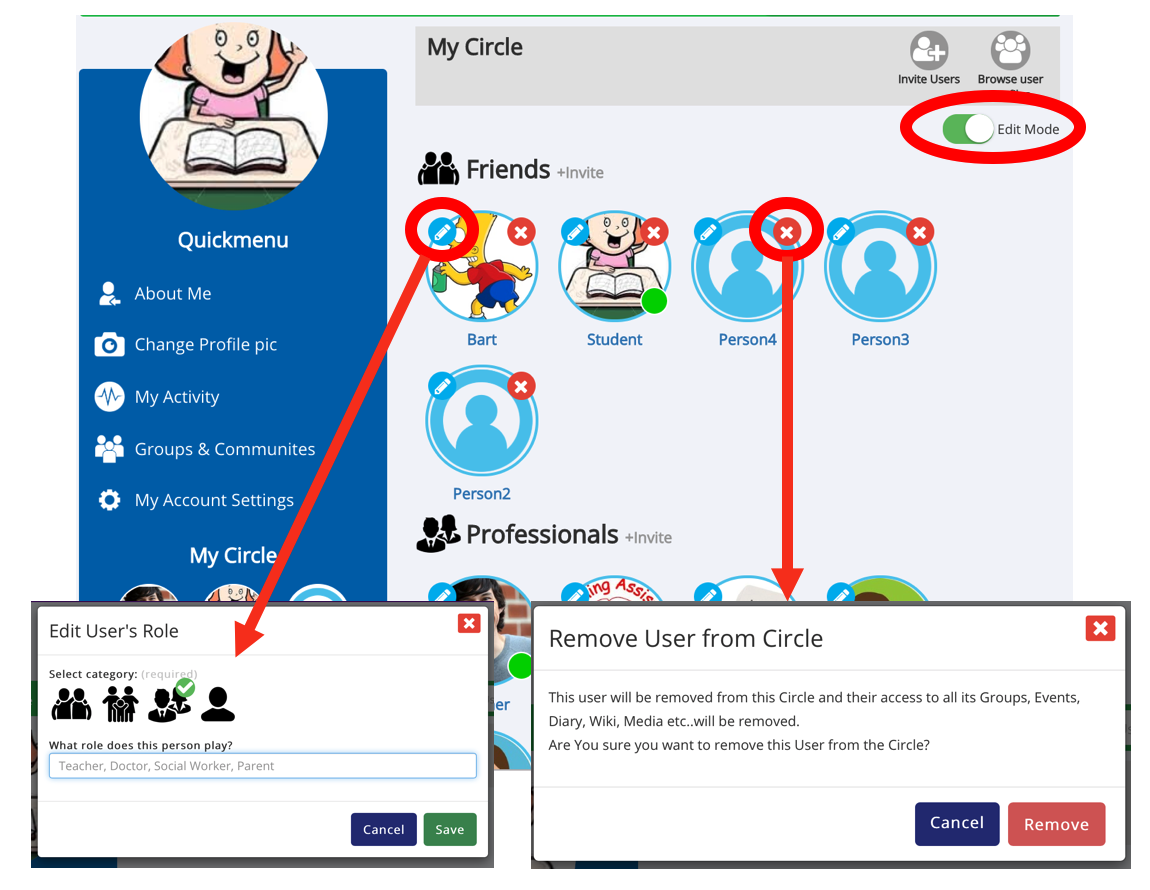
Open My Circle.
Switch on Edit Mode.
Click the pencil icon beside the person's picture.
Choose their Circle Category (such as Friends, Family or Support).
Add or change their role or relationship, if needed.
Click Save.
Removing someone from your Circle
Open My Circle and switch on Edit Mode.
Click the cross (X) icon beside the person you want to remove.
A confirmation message will appear.
Click Remove to confirm.
Important: Removing someone from your Circle will also remove their access to your shared Groups, Events, Diary, Wiki, Media and other areas.
Note: You cannot remove Buddies or staff members assigned to your Circle by your organisation.
If you would like someone removed from your Circle, please speak to your Buddy, Portal Admin, or the person responsible for Multi Me at your organisation.
Was this article helpful?
That’s Great!
Thank you for your feedback
Sorry! We couldn't be helpful
Thank you for your feedback
Feedback sent
We appreciate your effort and will try to fix the article