As a Buddy, you can manage which parts of a Supported User’s Wiki (Name of Wiki) their Circle members can view or edit.
You can set permissions for individual Wiki Sections and Pages, helping to keep personal information private and shared only with the right people.
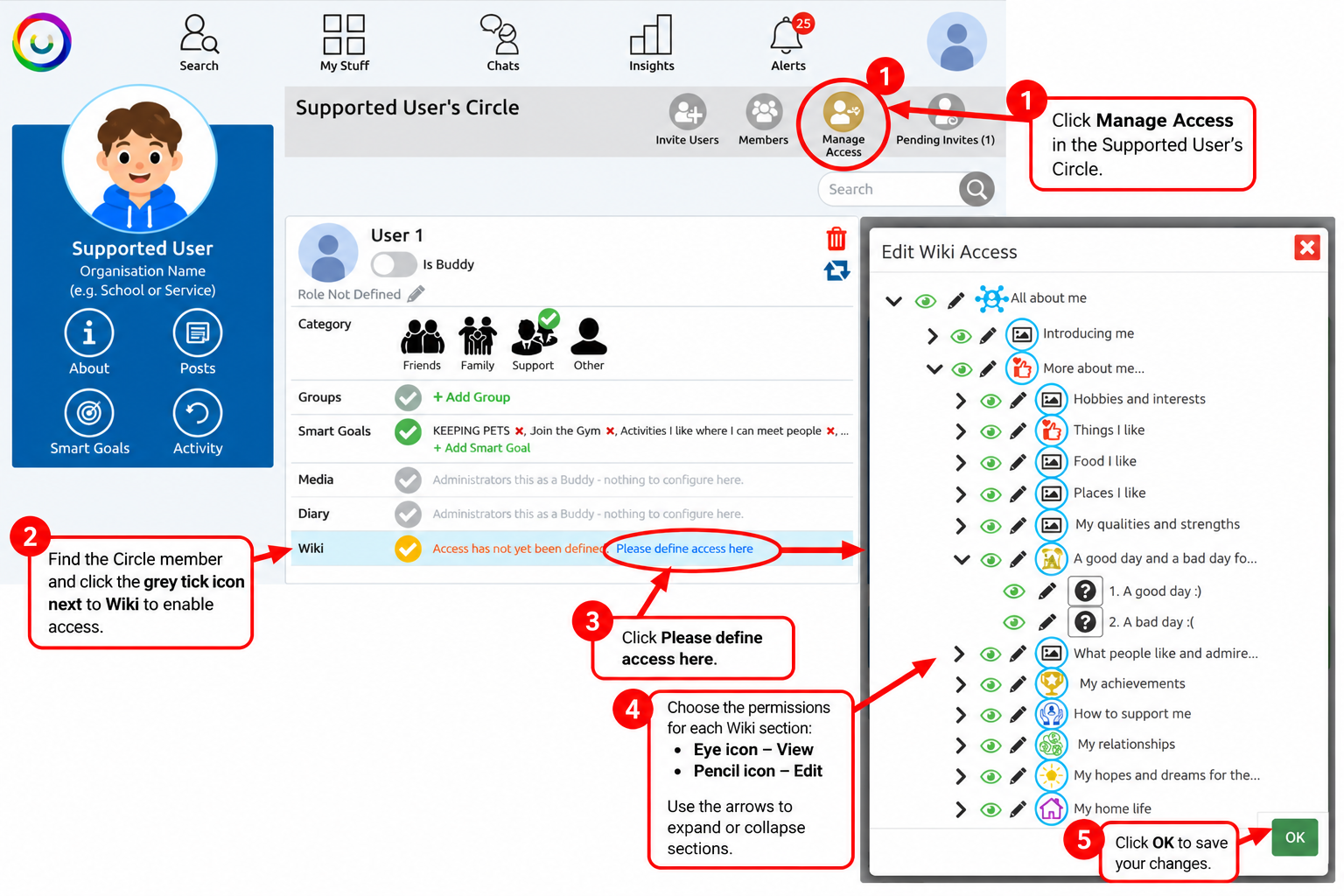
How to Give Wiki Access
Log in to Multi Me as the Supported User’s Buddy.
Open the Supported User’s Circle.
Click Manage Access.
Find the Circle member you want to give access to.
In the Wiki row, click the grey tick icon to enable access. It will turn amber.
Click Please define access here to open the Edit Wiki Access window.
Choose which Wiki Sections and Pages the person can access:
Eye icon – Allow the person to view the content.
Pencil icon – Allow the person to edit the content.
Arrow icon – Expand or collapse Sections to see their Subsections and Pages.
Click OK to save your changes.
The Wiki access tick will turn green once access has been configured.
Managing or Removing Access
You can return to Manage Access at any time to change the person's permissions.
Change the eye or pencil permissions to adjust what they can view or edit.
Turn off the green Wiki access tick to remove their access.
Buddies already have full administrative access to the Supported User’s Wiki.
Another Way to Manage Wiki Access
Wiki permissions can also be managed directly from the Wiki itself using the Wiki Manage Access area.
This allows you to review and update who can access the Wiki and its content.
Remember: Only give people access to the information they need, respecting the Supported User’s choices and privacy.
Was this article helpful?
That’s Great!
Thank you for your feedback
Sorry! We couldn't be helpful
Thank you for your feedback
Feedback sent
We appreciate your effort and will try to fix the article