You can change your Wiki's name, add a description and manage other settings from the Wiki main menu.
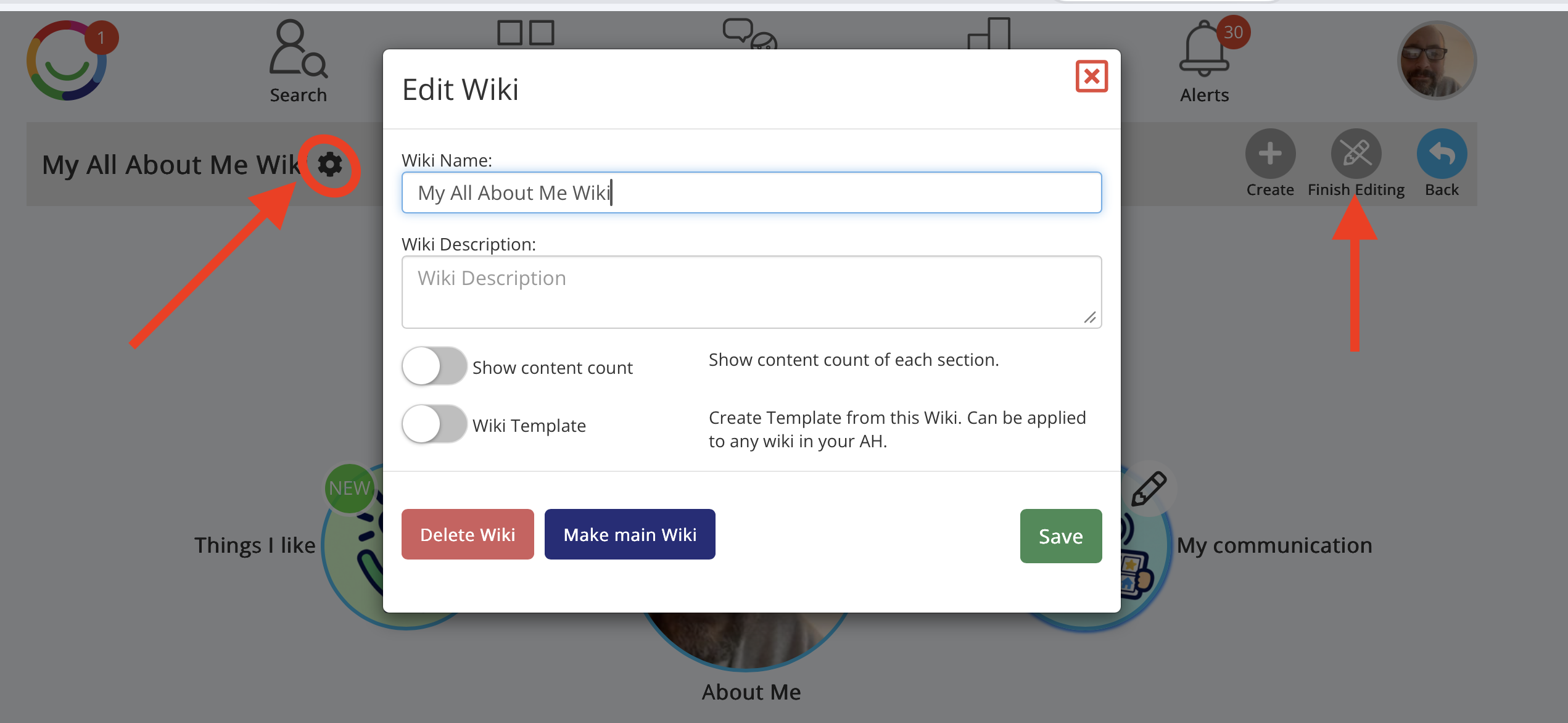
How to open your Wiki Settings
Open your Wiki and go to its main menu.
Click Edit to switch on editing mode.
Click the cog icon next to your Wiki's name.
The Edit Wiki window will open.
What can you change?
Wiki Name – Change the name of your Wiki.
Wiki Description – Add or update a short description explaining what your Wiki is about.
Show content count – Switch this on to display the number of Pages or Sections within each Section.
Make main Wiki – If you have more than one Wiki, choose which one is your main Wiki. Your main Wiki cannot be deleted.
Wiki Template (Advanced) – Turn your Wiki into a template that can be used to create other Wikis within your organisation's Account Holder.
Delete Wiki – Permanently delete the Wiki and all its contents.
Saving your changes
Make the changes you want.
Click Save.
Click Finish Editing when you're done.
Important: Deleting a Wiki
⚠️ Deleting a Wiki permanently deletes ALL its Sections, Subsections, Pages and content, including pictures, videos and other information. This cannot be undone or recovered.
You cannot delete your main Wiki. If you have more than one Wiki, you can make another Wiki your main Wiki first.
Please check carefully before deleting. If you want to keep any information, move it to another Wiki or save a copy before deleting.
Was this article helpful?
That’s Great!
Thank you for your feedback
Sorry! We couldn't be helpful
Thank you for your feedback
Feedback sent
We appreciate your effort and will try to fix the article