You can change your Multi Me profile picture whenever you like.
Your profile picture helps people in your Circle recognise you.
How to change your profile picture
Sign in to Multi Me.
Select About Me from your Quickmenu.
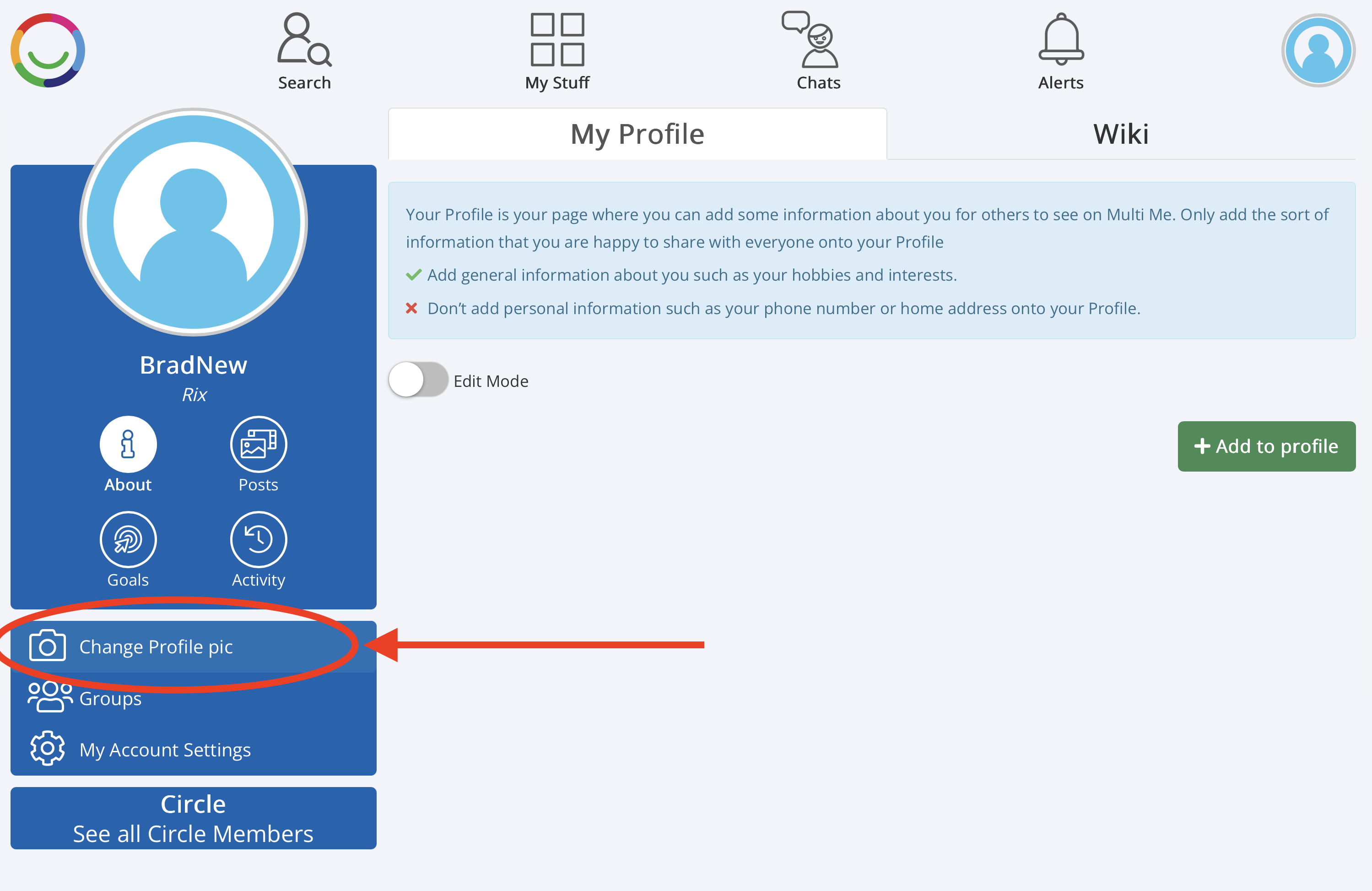
Select Change Profile pic.
The Change Avatar window will open.
Choose your new picture
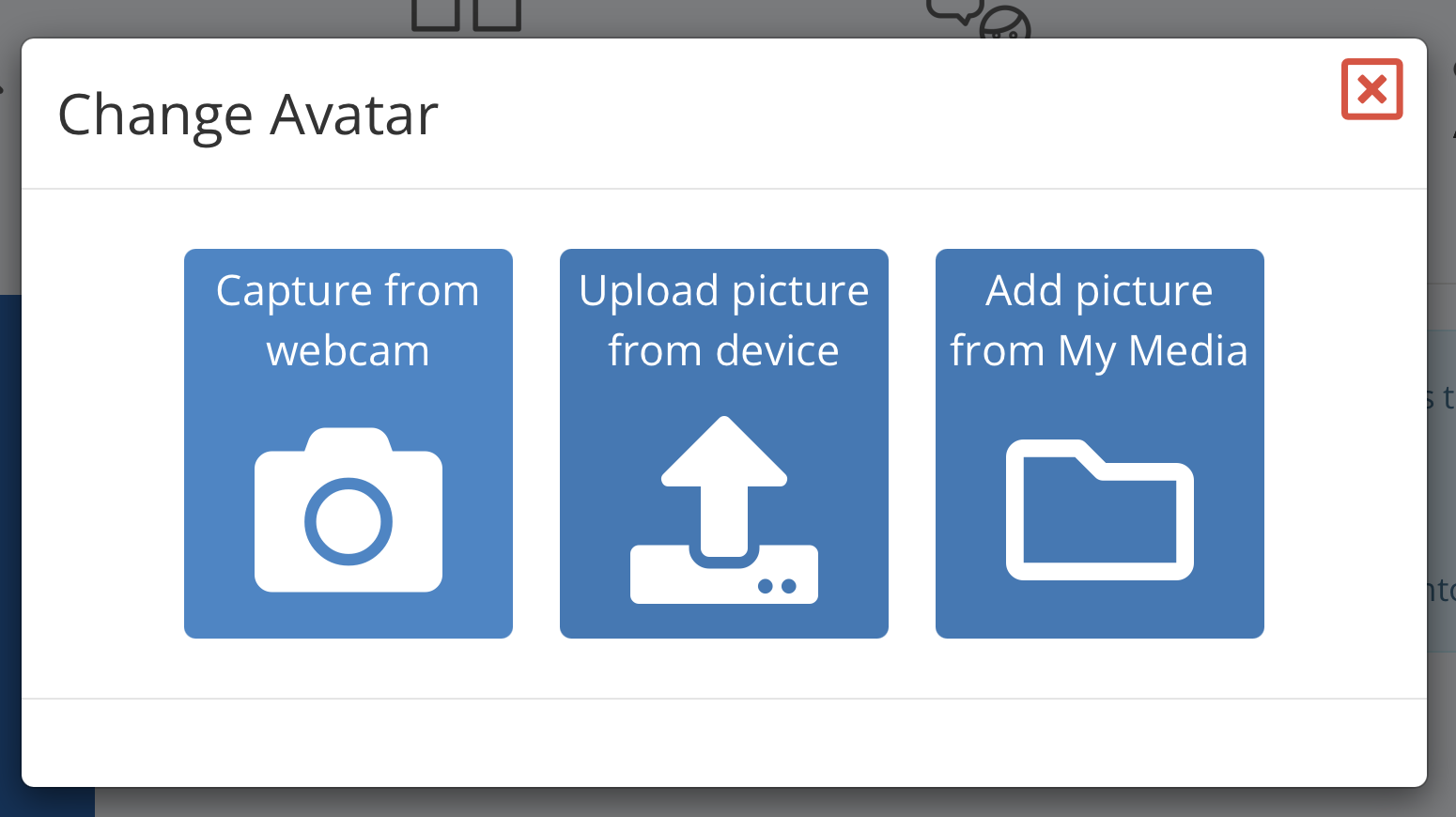
You have three options:
Capture from webcam – Take a new photograph using your camera.
Upload picture from device – Choose a photograph saved on your computer, phone or tablet.
Add picture from My Media – Choose a photograph you have already saved in your Multi Me Media Library.
Crop your picture
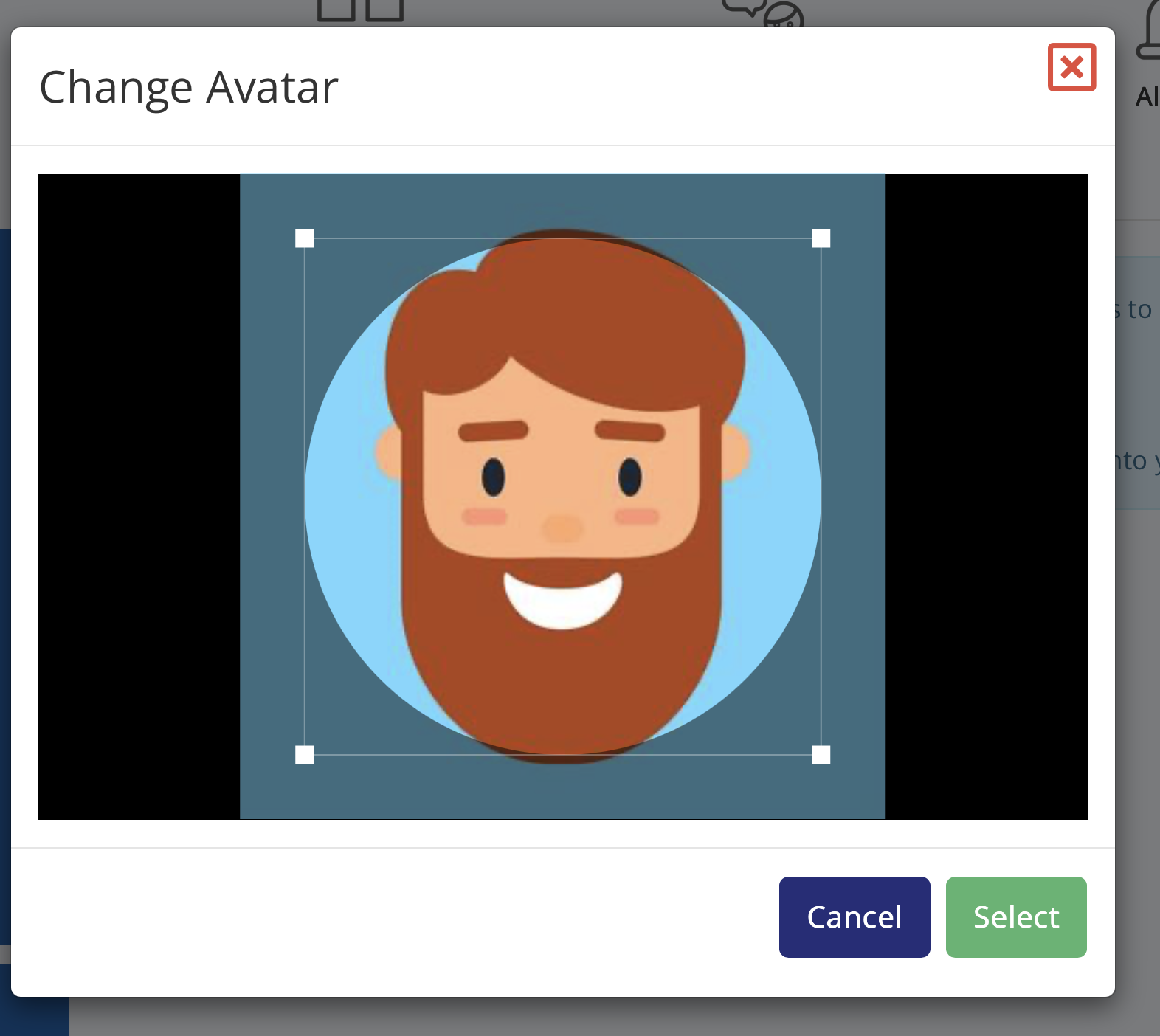
Once you have chosen your photograph, you can adjust how it looks.
Move or resize the selection area to choose which part of the photograph you want to show.
Make sure the important part of your photograph is inside the circle.
Select Select to confirm your picture.
Save your changes if prompted.
Need some help?
You can ask your Buddy, support worker or someone you trust to help you change your profile picture.
Was this article helpful?
That’s Great!
Thank you for your feedback
Sorry! We couldn't be helpful
Thank you for your feedback
Feedback sent
We appreciate your effort and will try to fix the article