You can use your Multi Me account settings to update your personal information, change your password and choose how your account works.
How to open your settings
Sign in to Multi Me.
Select your profile picture at the top right of the screen.
Choose Settings.
You can also select My Account Settings from your Quickmenu.
There are four sections in your settings.
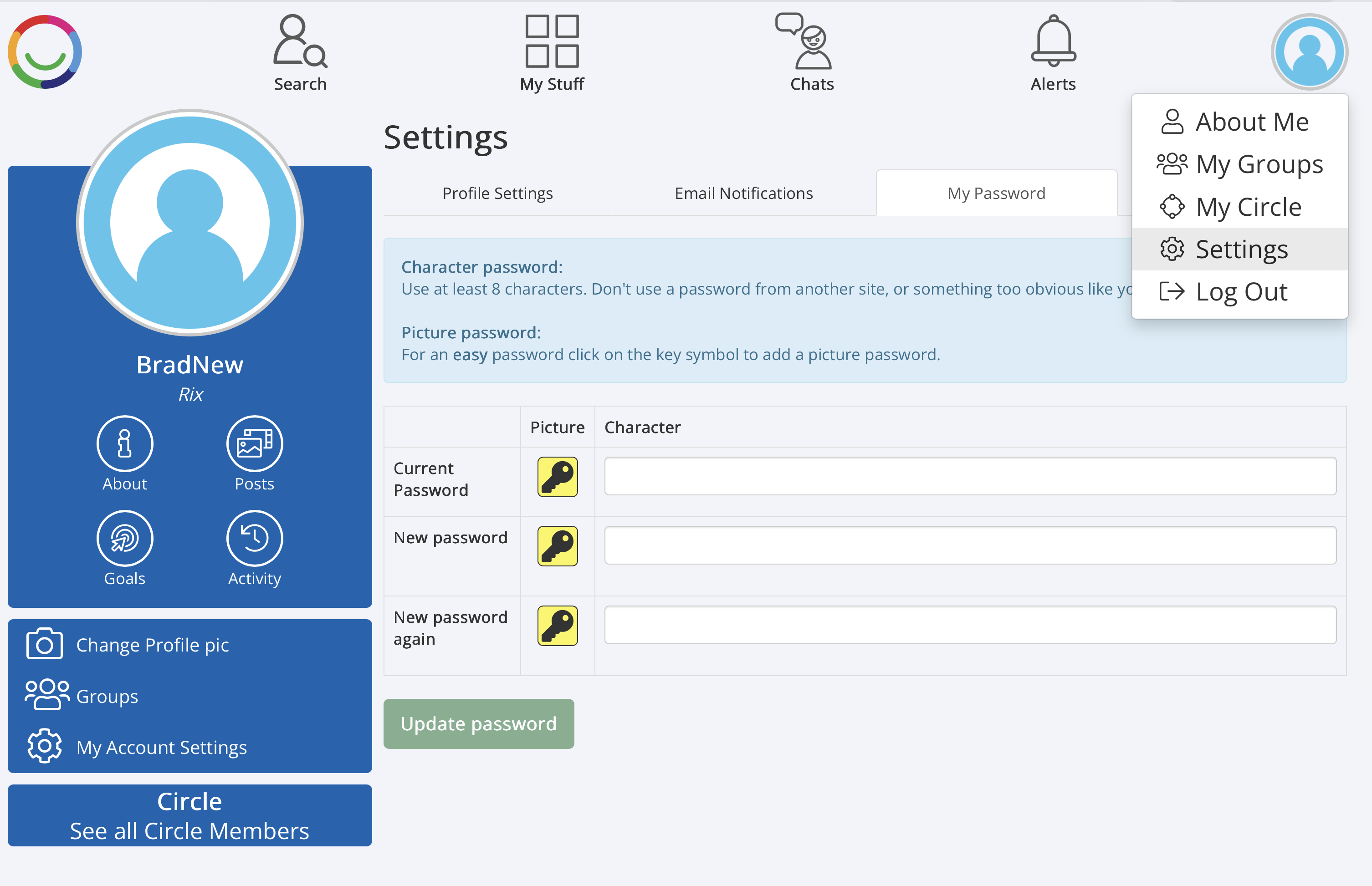
1. Profile Settings
Here you can:
See your username.
Add or change your email address.
Update your first name and last name.
Choose whether to hide your profile.
Request an archive of your Media Library.
Request to delete your account.
Select Save after making changes.
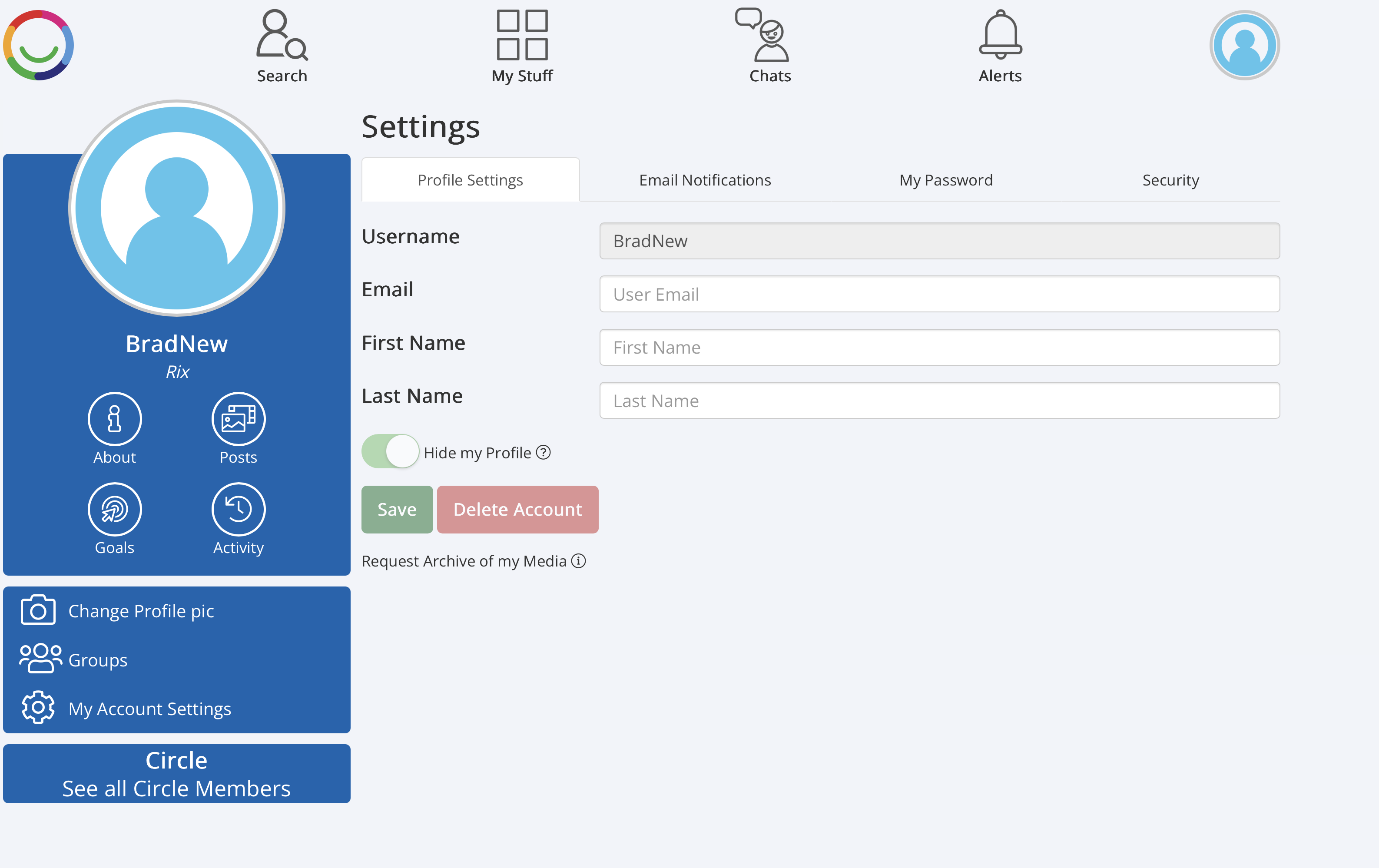
2. Email Notifications
Choose which emails you want to receive from Multi Me.
You can turn emails on or off for:
Alerts
Diary Notes
Daily activity updates
Circle Chats
Group Chats
Select Save after changing your preferences.
3. My Password
Here you can change your password.
Multi Me supports both written passwords and picture passwords.
For help changing your password, see our Getting Started – 5 Activities video training guide.
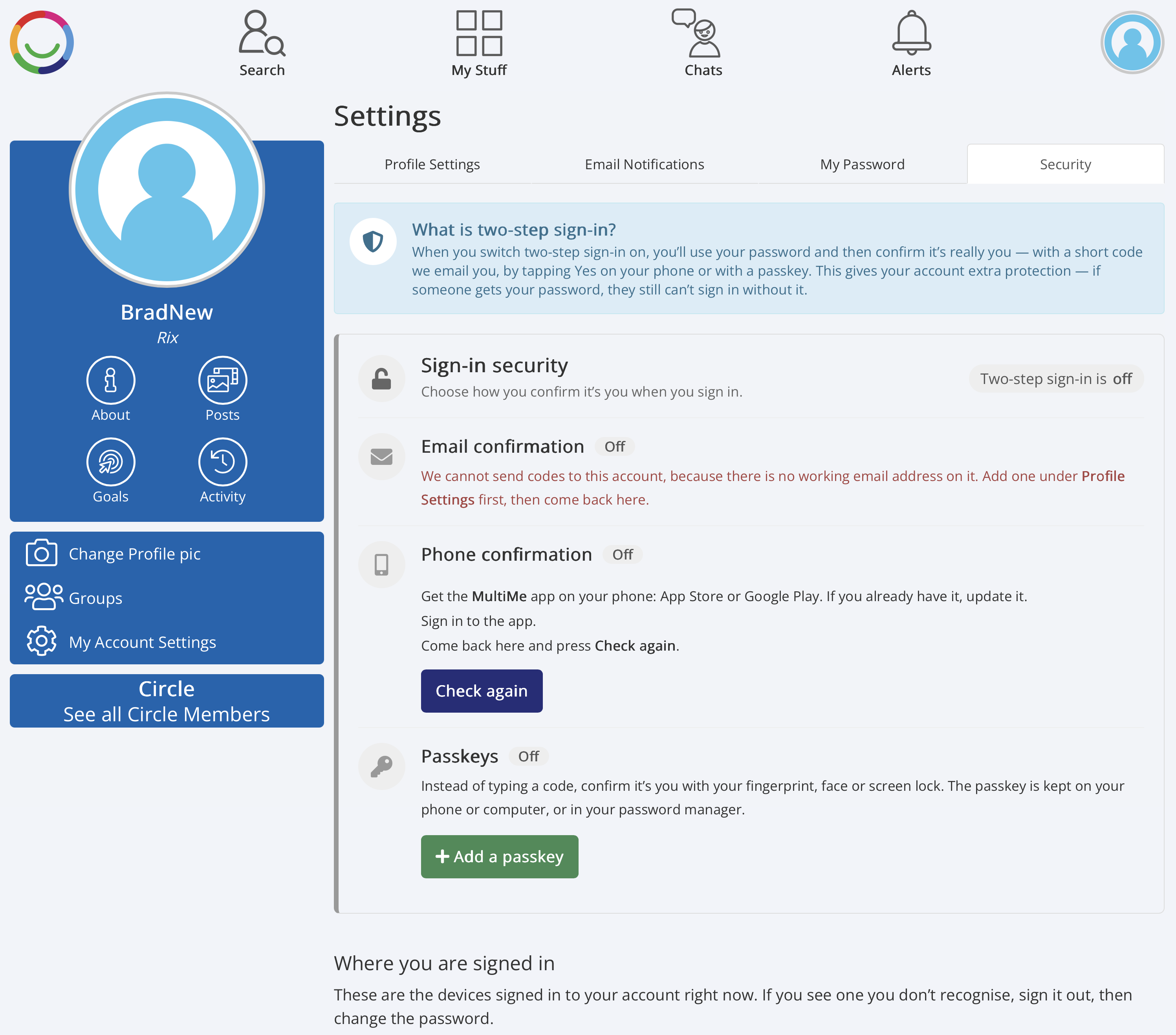
4. Security
Use this section to help keep your account safe.
You can:
Set up two-step sign-in for extra security.
Use email confirmation, phone confirmation or passkeys where available.
See which devices are signed in to your account.
Sign out of devices you no longer use.
For more information, visit our Security & Privacy help guides.
Need some help?
Ask your Buddy, support worker or someone you trust to help you understand your account settings.
Was this article helpful?
That’s Great!
Thank you for your feedback
Sorry! We couldn't be helpful
Thank you for your feedback
Feedback sent
We appreciate your effort and will try to fix the article