Two-step sign-in helps keep your Multi Me account safe. It adds an extra layer of protection when you sign in. Even if someone knows your password, they will need another way to confirm it's really you.
We recommend turning on two-step sign-in to help protect your personal information.
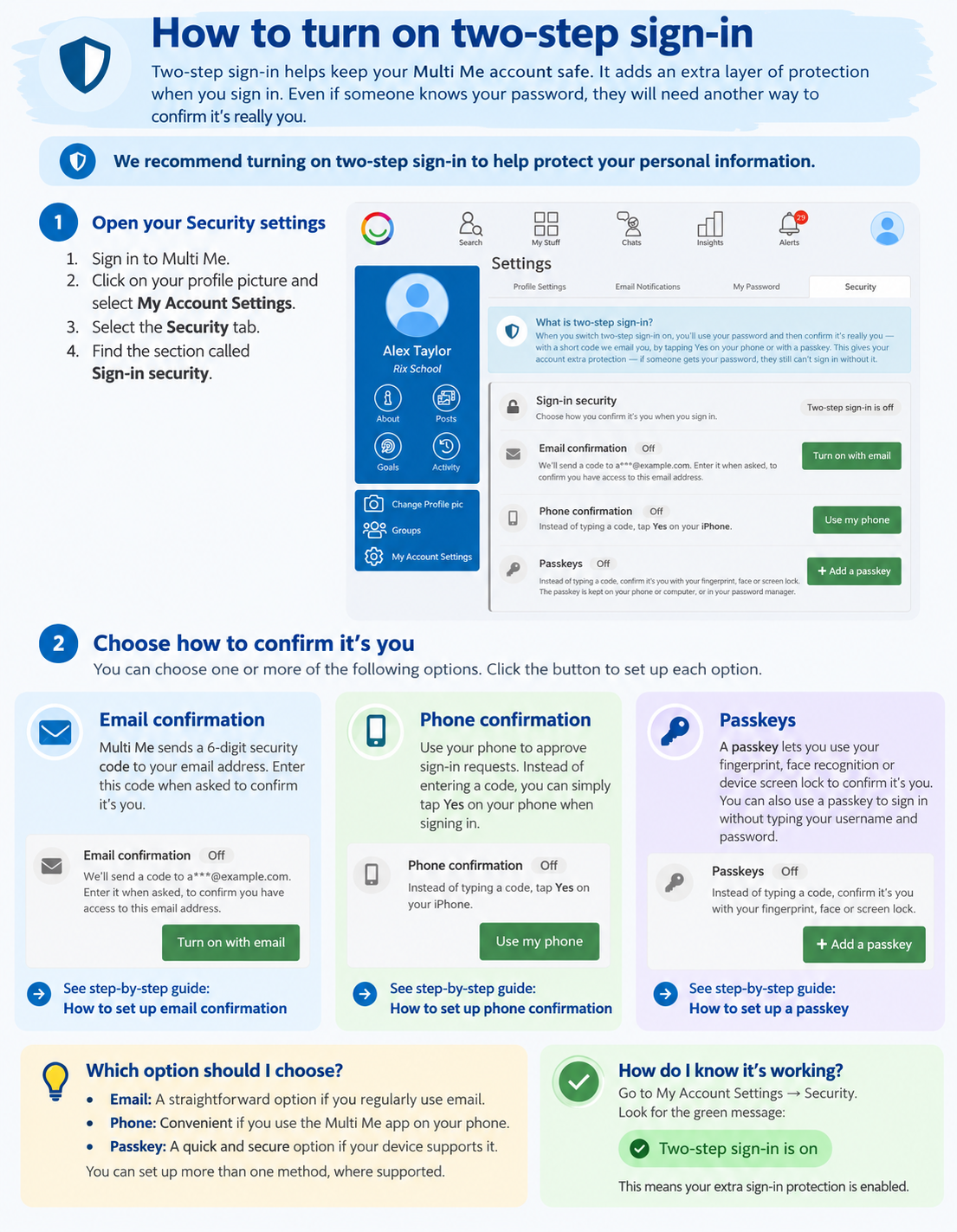
How to get started
Sign in to Multi Me.
Select My Account Settings.
Select the Security tab.
Find the section called Sign-in security.
You can now choose how you would like to confirm it's you.
Choose how to confirm it's you
Option 1: Email confirmation
Multi Me sends a 6-digit security code to your email address.
Enter this code when asked to confirm it's you.
You will need a working email address on your account.
Option 2: Phone confirmation
Use your phone to approve sign-in requests.
Instead of entering a code, you can simply tap Yes on your phone when signing in.
Only approve requests when you're the person signing in.
Option 3: Passkeys
A passkey lets you use your fingerprint, face recognition or device screen lock to confirm it's you.
You can also use a passkey to sign in without typing your username and password.
Which option should I choose?
All three options can help protect your account.
Email: A straightforward option if you regularly use email.
Phone: Convenient if you use the Multi Me app on your phone.
Passkey: A quick and secure option if your device supports it.
You can set up more than one method, where supported.
How do I know it's working?
Open My Account Settings → Security.
Look for the green message:
✓ Two-step sign-in is on
This means your extra sign-in protection is enabled.
Need help?
If you're unsure which option to choose, ask someone you trust or your portal administrator.
You can also contact Multi Me Support through this Helpdesk.
Was this article helpful?
That’s Great!
Thank you for your feedback
Sorry! We couldn't be helpful
Thank you for your feedback
Feedback sent
We appreciate your effort and will try to fix the article