You can edit your Goals and Steps at any time, provided you have permission to make changes.
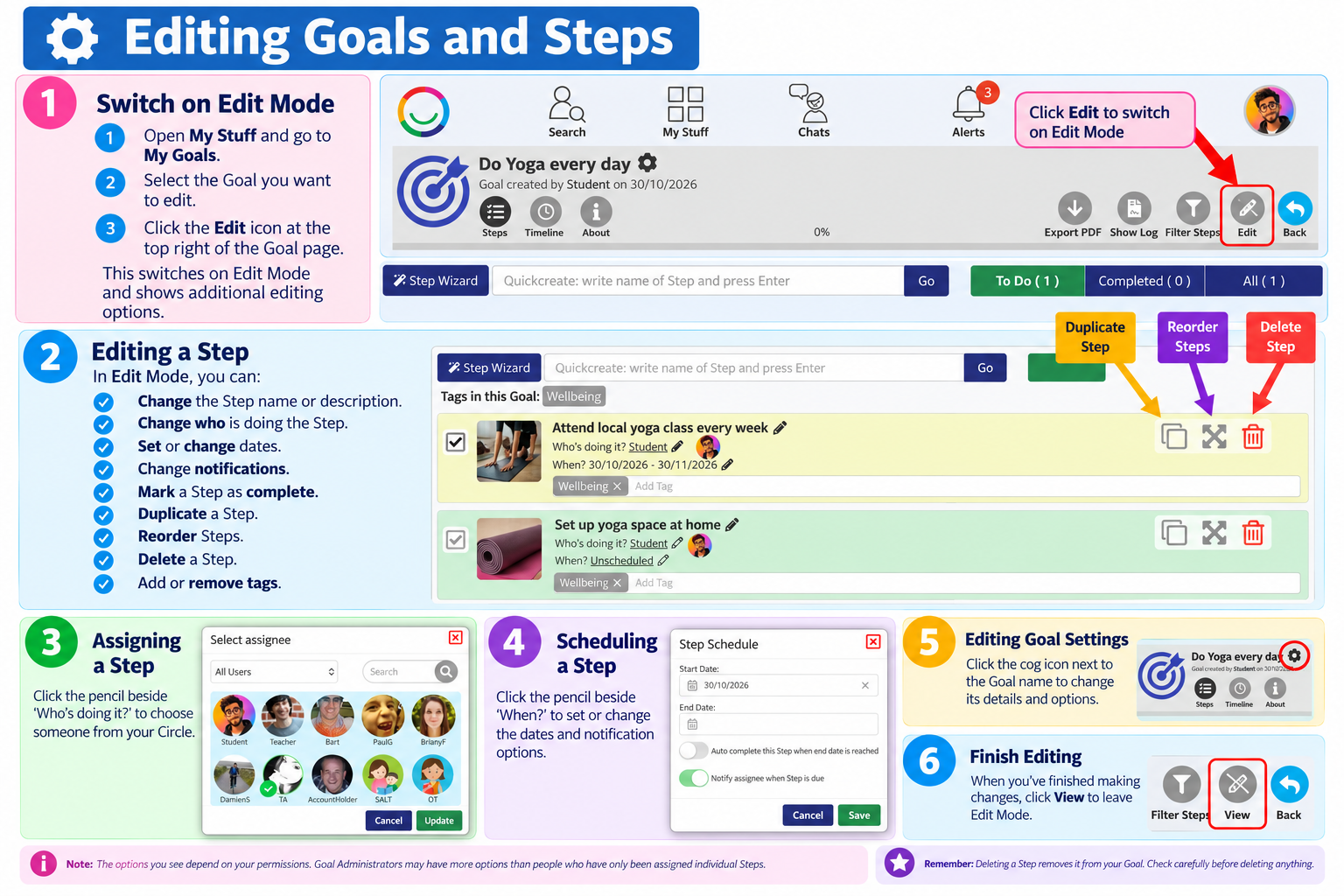
1. Switch on Edit Mode
Open My Stuff → My Goals.
Select the Goal you want to edit.
Click Edit in the top-right corner of the Goal page.
This switches on Edit Mode and displays additional editing options.
2. Editing a Step
In Edit Mode, you can:
Change the Step name or description by clicking the pencil icon beside its name.
Change who is doing the Step by clicking the pencil beside the person's name and choosing someone from your Circle.
Set or change dates by clicking the pencil beside the date or Unscheduled.
Change notifications and choose whether the Step should automatically complete.
Mark a Step as complete using its checkbox.
Duplicate a Step using the copy icon.
Reorder Steps using the four-arrow move icon.
Delete a Step using the red dustbin icon.
Add or remove tags to help organise Steps.
Assigning a Step
Click the pencil beside Who's doing it?, select the person and click Update.
Scheduling a Step
Click the pencil beside When? to open the Step Schedule.
You can choose a start date, an end date, whether to automatically complete the Step, and whether to notify the person assigned.
Click Save.
3. Editing Goal Settings
To change the Goal itself, click the cog icon beside the Goal name.
This opens the Goal settings, where you can update its details and available options.
4. Finish Editing
When you've finished, click View to leave Edit Mode.
Please note: The editing options you see depend on your permissions. Goal Administrators may have more options than people who have only been assigned individual Steps.
Remember: Deleting a Step removes it from your Goal. Check carefully before deleting anything.
Was this article helpful?
That’s Great!
Thank you for your feedback
Sorry! We couldn't be helpful
Thank you for your feedback
Feedback sent
We appreciate your effort and will try to fix the article