Sometimes it may be necessary to restrict which parts of their own Wiki a Supported User can view or edit.
Wiki Admins can manage the Wiki Owner's permissions in the same way as other Wiki Members.
How to change the Wiki Owner's access
Open the Supported User's Wiki.
From the Wiki Main Menu, select More (…) → Access.
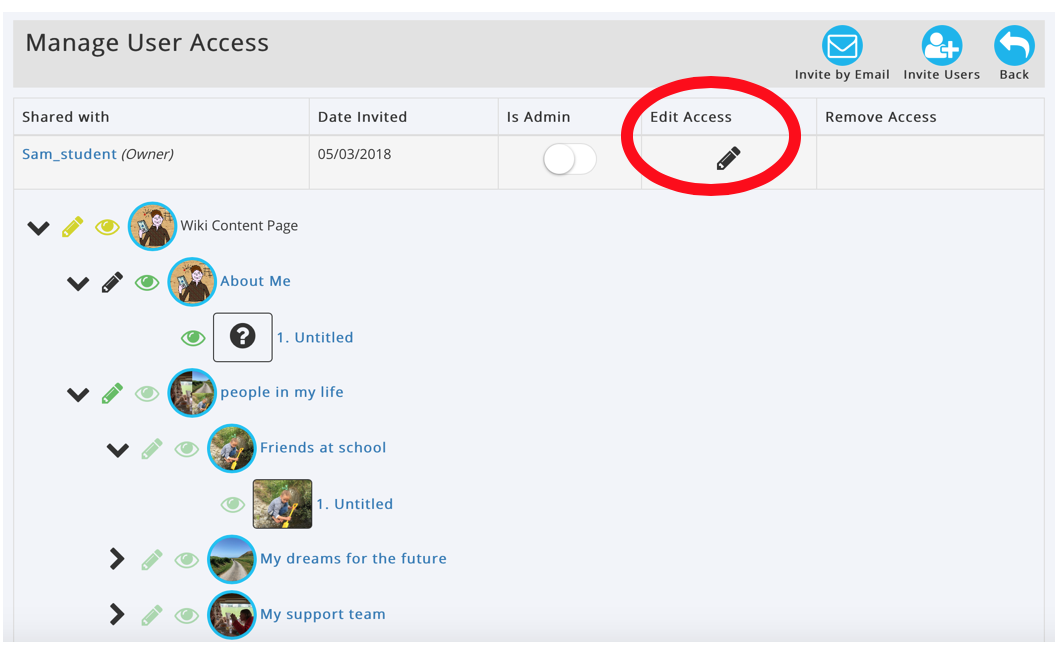
In the Manage User Access table, find the Wiki Owner, who is always listed at the top of the Wiki Members section.
If necessary, switch off Is Admin for the Wiki Owner.
Click the pencil icon under Access given to open the permissions tree.
Use the eye icons to choose which Sections, Subsections and Pages the Wiki Owner can view.
Use the pencil icons to choose which content the Wiki Owner can edit.
You can expand or collapse Sections to manage permissions for individual Pages.
Important
Restricting the Wiki Owner's access should only be done when necessary and in their best interests.
Where possible, involve the Supported User in decisions about what information they can view or edit.
Was this article helpful?
That’s Great!
Thank you for your feedback
Sorry! We couldn't be helpful
Thank you for your feedback
Feedback sent
We appreciate your effort and will try to fix the article