Wiki Admins can export an entire Wiki, or selected Sections and Pages, as a PDF document.
This is useful for creating a printable copy of someone's information, sharing a support plan or keeping a record of Wiki content.
What Does the PDF Include?
The exported PDF includes:
Wiki Sections, Pages and their content
Contributor names
Date and time stamps for each Page
A contents page to help navigate the document
Please note:
Videos and audio files appear as thumbnails only and cannot be played within the PDF.
File attachments are listed by filename but are not included as downloadable files.
How to Export a Wiki
Open the Wiki you want to export.
Click the three dots (More) in the Wiki menu.
Select Exports.
Under Include, choose which content to export:
Select the top-level Wiki checkbox to include the entire Wiki.
Alternatively, expand the Sections and select the individual Sections and Pages you want to include.
Click Create.
Enter a name for your export, or keep the default name provided.
Click Create to start generating the PDF.
Your export will now be processed. Larger Wikis may take a few minutes.
Downloading Your PDF
Once processing is complete:
Find your export in the Wiki Exports list.
Check that its status shows Completed.
Click Download to open or save the PDF to your device.
The PDF will include a title page, contents page and the selected Wiki content.
Important: Keeping Information Secure
Wiki exports may contain sensitive personal information.
Only export information you are authorised to access, and make sure any downloaded PDFs are stored and shared securely.
Remember that Wiki access permissions do not protect a PDF once it has been downloaded. Take care when sharing exported documents with others.
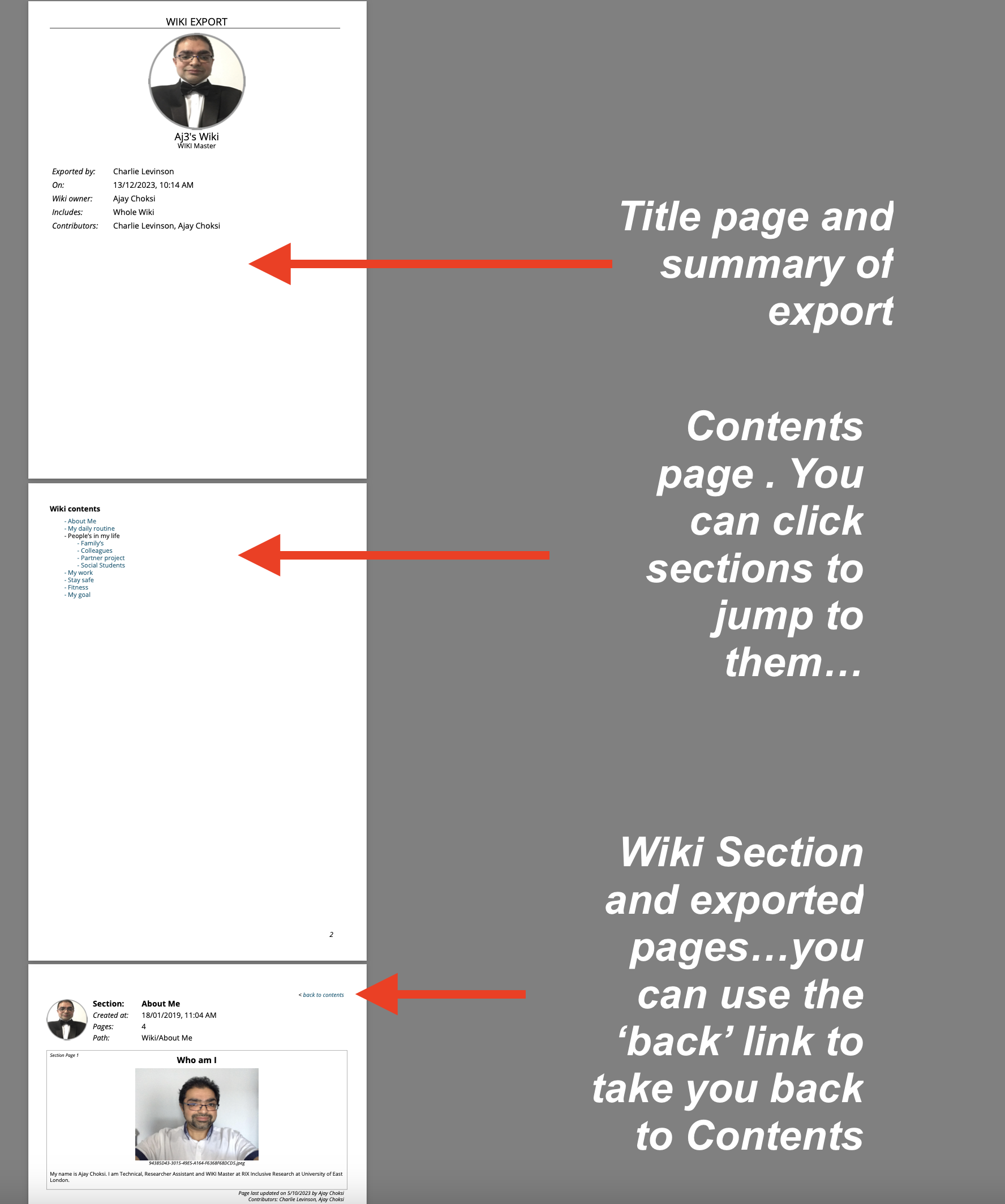
Fig. 1. PDF Wiki export features.
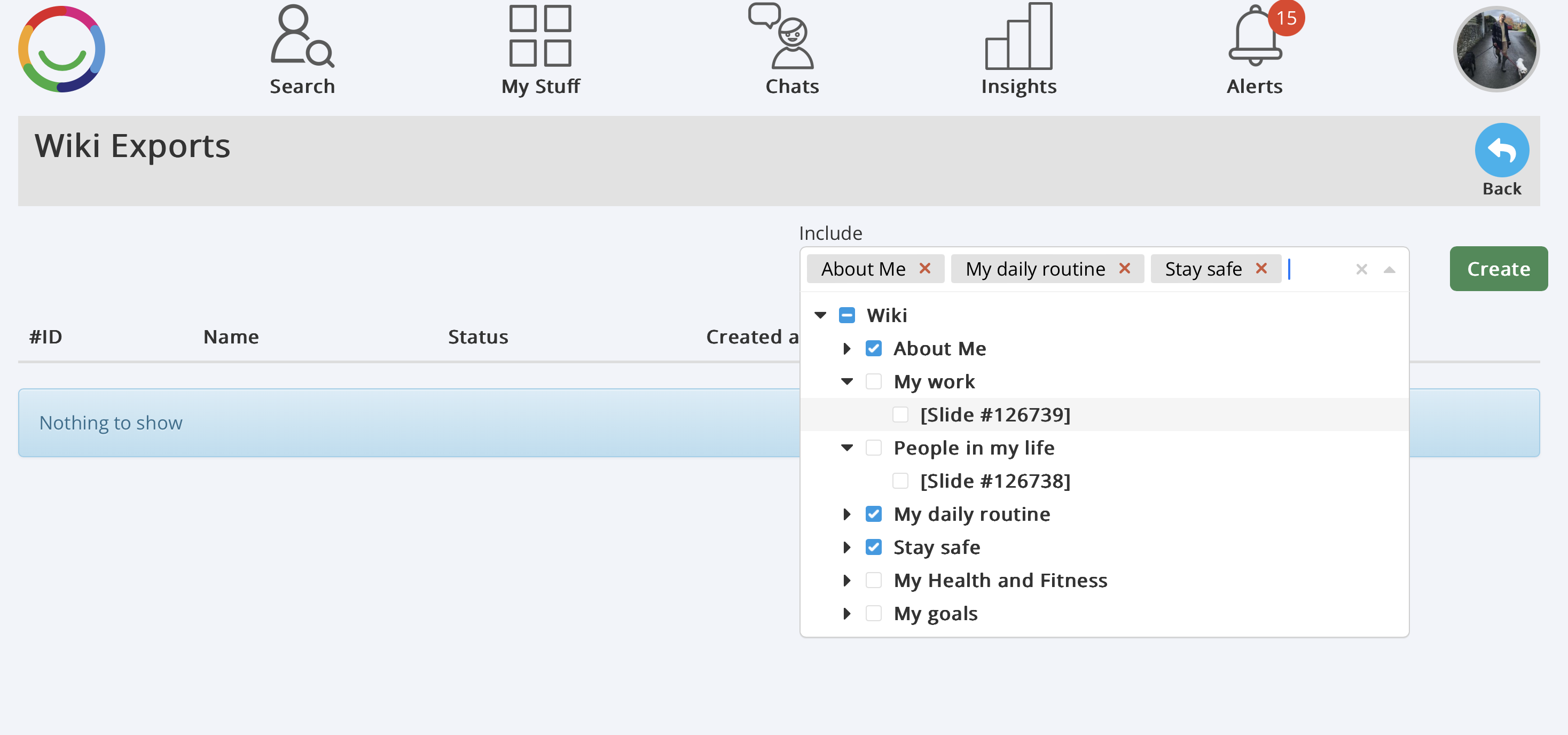
Fig. 2. Wiki selection – choose the sections and pages you want to include in your PDF export.
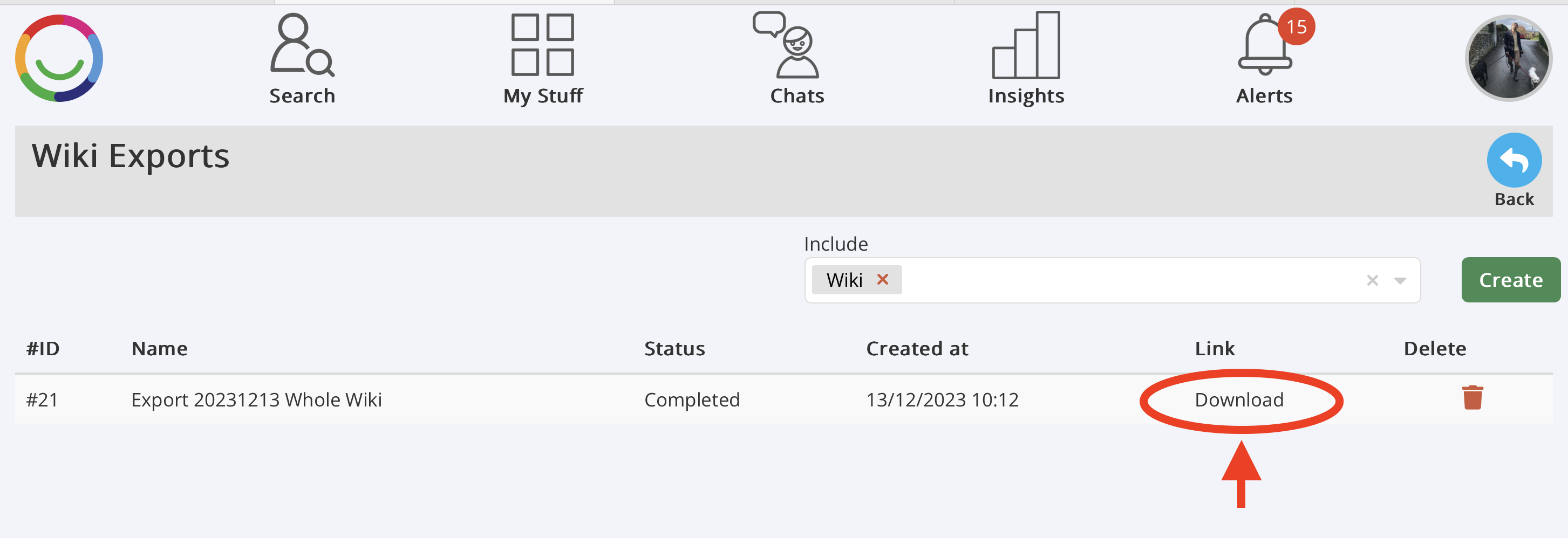
Fig. 3. Once the export has finished processing, click Download to open or save the Wiki PDF to your device.
Was this article helpful?
That’s Great!
Thank you for your feedback
Sorry! We couldn't be helpful
Thank you for your feedback
Feedback sent
We appreciate your effort and will try to fix the article