Buddies can help Supported Users manage what they share with other people on Multi Me.
Depending on the Supported User's needs, a Buddy can either allow sharing or require their approval before sharing takes place.
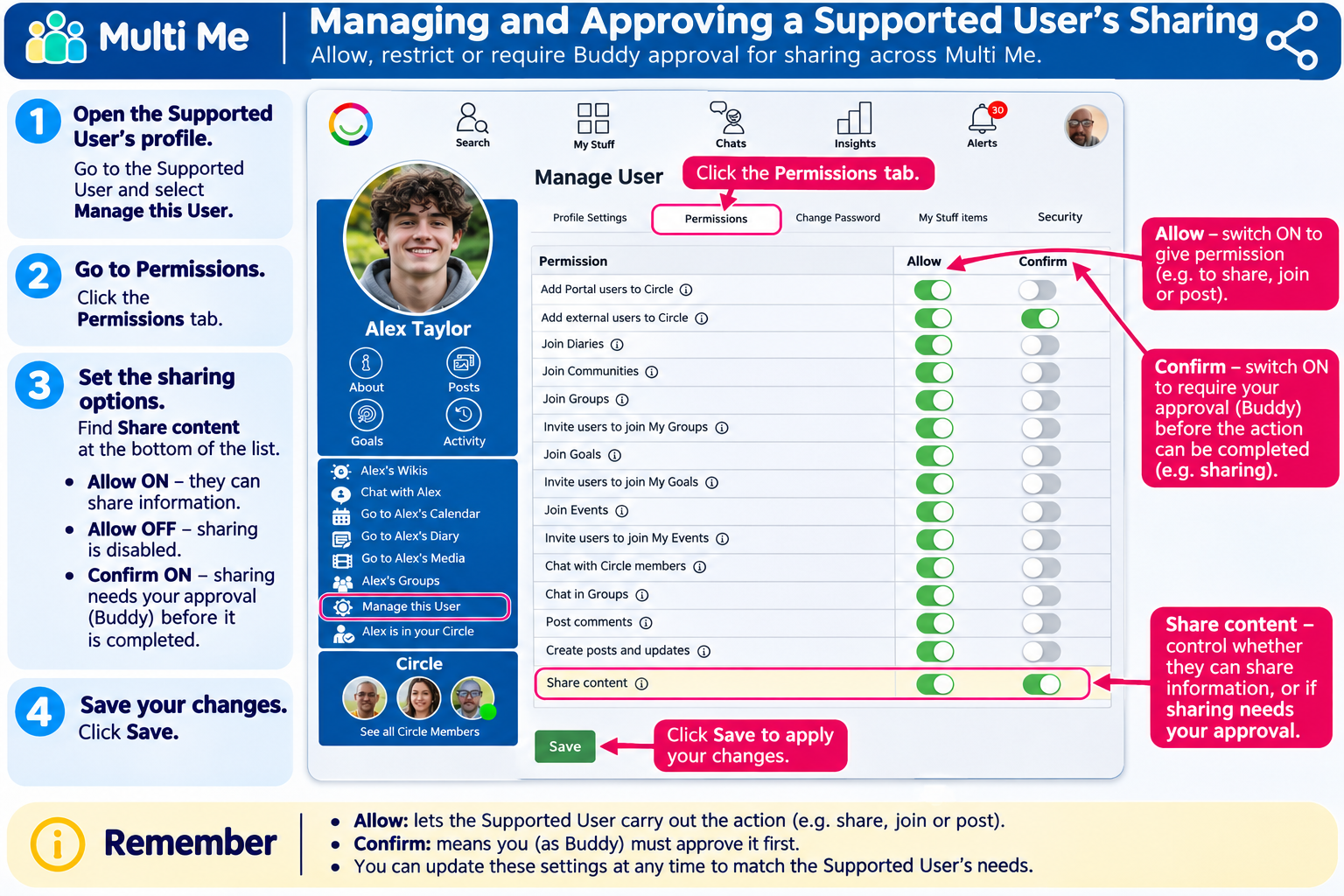
How to manage sharing permissions
Open the Supported User's profile.
Select Manage this User (you may need to select Show More).
Open the Permissions tab.
Find Share in the permissions list.
Choose the appropriate settings:
Allow ON: The Supported User is allowed to share information.
Allow OFF: Sharing is disabled for the Supported User.
Confirm ON: Sharing requires Buddy confirmation before it is approved.
Click Save.
What does Buddy confirmation mean?
When Confirm is enabled for sharing, the Buddy can review sharing requests before they are approved.
This provides additional oversight while allowing the Supported User to participate in sharing information.
Important
Sharing restrictions should be proportionate to the Supported User's needs and agreed with them wherever possible.
The aim is to support safe, informed sharing while promoting choice, independence and control over personal information.
Was this article helpful?
That’s Great!
Thank you for your feedback
Sorry! We couldn't be helpful
Thank you for your feedback
Feedback sent
We appreciate your effort and will try to fix the article