Wiki Admins can check Read Receipts they have sent, see which information was included and track whether recipients have confirmed reading it.
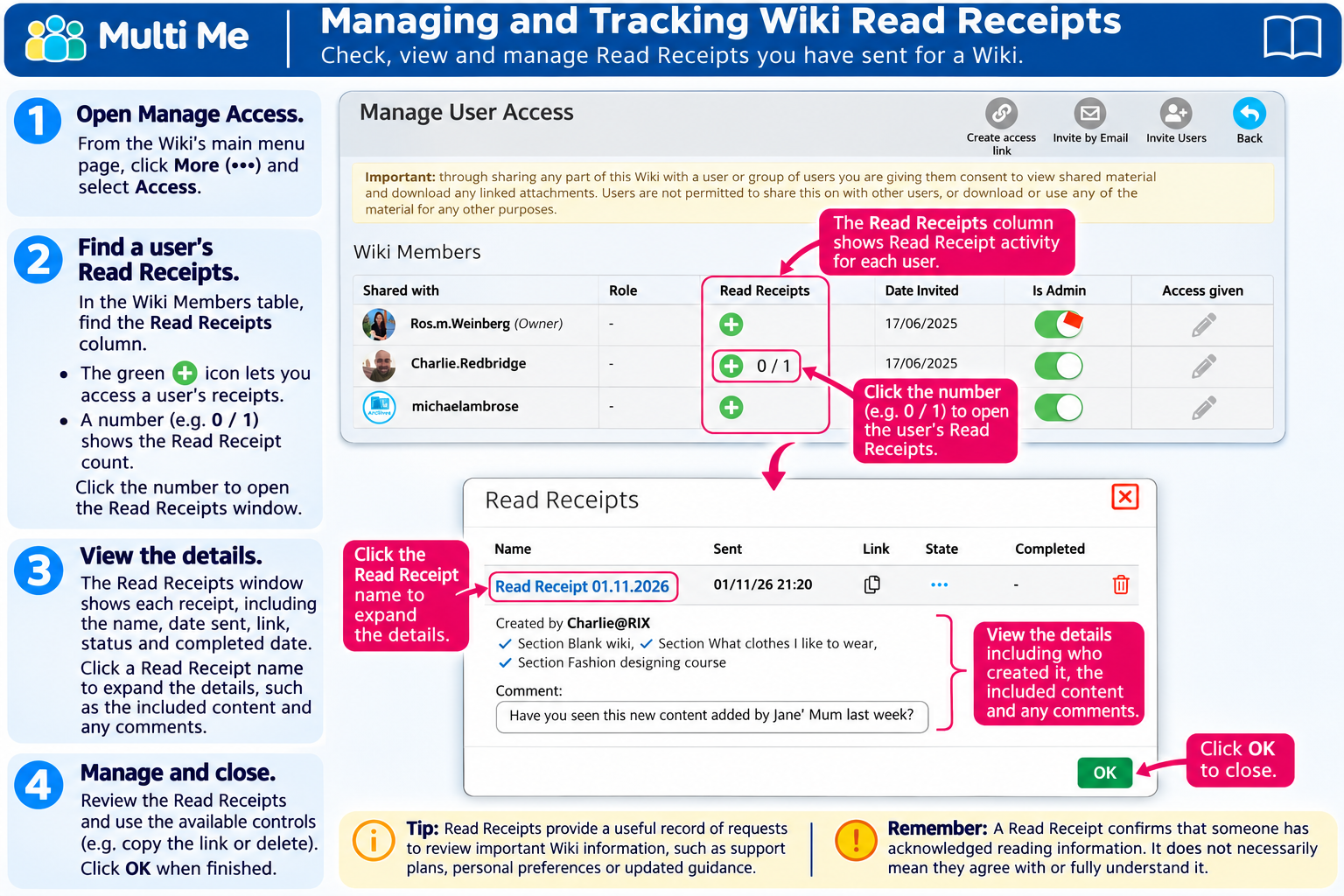
1. Open Wiki Manage Access
Open the Wiki's main menu page.
Click More (•••).
Select Access to open the Manage User Access page.
2. Find a User's Read Receipts
In the Wiki Members table, find the person whose Read Receipts you want to check.
Look for the Read Receipts column.
The green + icon lets you access the user's Read Receipts.
A number beside the icon shows the Read Receipt count, for example 0 / 1.
Click the number to open the Read Receipts window.
3. View Read Receipt Details
The Read Receipts window displays information about each receipt, including:
Name – the Read Receipt title.
Sent – when it was sent.
Link – an option to copy the Read Receipt link.
State – the receipt's current status.
Completed – completion information.
Click a Read Receipt name to expand its details.
You can then see the Wiki Sections or Pages included in the receipt, who created it and any accompanying comments or messages.
4. Manage Read Receipts
From the Read Receipts window, you can review existing receipts and use the available controls to manage them.
Click OK to close the window when finished.
Tip: Read Receipts provide a useful record of requests to review important Wiki information, such as support plans, personal preferences or updated guidance.
Remember: A Read Receipt confirms that someone has acknowledged reading information. It does not necessarily mean they agree with or fully understand it.
Was this article helpful?
That’s Great!
Thank you for your feedback
Sorry! We couldn't be helpful
Thank you for your feedback
Feedback sent
We appreciate your effort and will try to fix the article