A Wiki Read Receipt lets you confirm that you have read important information shared with you. You can also send a message back to the person who requested it.
1. Open Your Read Receipt
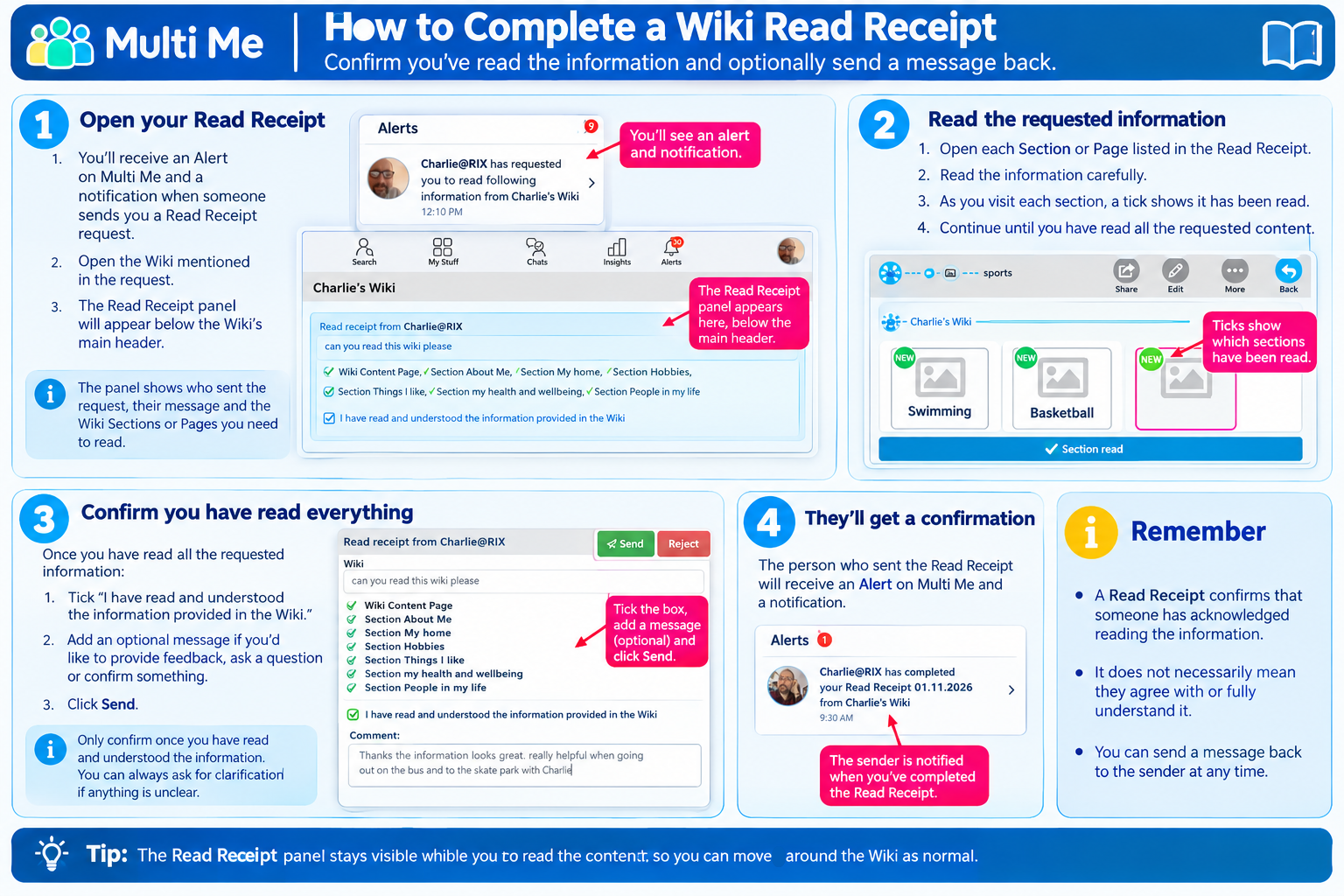
You will receive an Alert on Multi Me and a notification when someone sends you a Read Receipt request.
Open the Wiki mentioned in the request.
The Read Receipt panel will appear directly below the Wiki's main header.
The panel shows who sent the request, their message and the Wiki Sections or Pages they have asked you to read.
2. Read the Requested Information
Open each Section or Page listed in the Read Receipt.
Read the information carefully.
As you visit the requested content, ticks indicate which Sections or Pages have been read.
Continue until you have read all the requested information.
You can navigate around the Wiki normally while the Read Receipt panel remains visible.
3. Confirm You Have Read Everything
Once you have read all the requested information:
Tick “I have read and understood the information provided in the Wiki.”
An optional message box will appear.
Add a message if you would like to provide feedback, ask a question or confirm something with the sender.
Click Send to complete the Read Receipt.
Important: Only confirm once you have read and understood the information. If anything is unclear, you can ask the sender for clarification.
4. What Happens Next?
The person who sent the Read Receipt will receive an Alert on Multi Me and a notification confirming that you have completed it.
They will also be able to see any message you included.
This provides a useful record that important information has been read and acknowledged.
Was this article helpful?
That’s Great!
Thank you for your feedback
Sorry! We couldn't be helpful
Thank you for your feedback
Feedback sent
We appreciate your effort and will try to fix the article