If you are an Admin of a Group or a Community, you can create events that automatically appear in the Calendars of all Community followers or Group members.
Events can be one-off or repeating, making them ideal for organising activities, meetings and regular sessions.
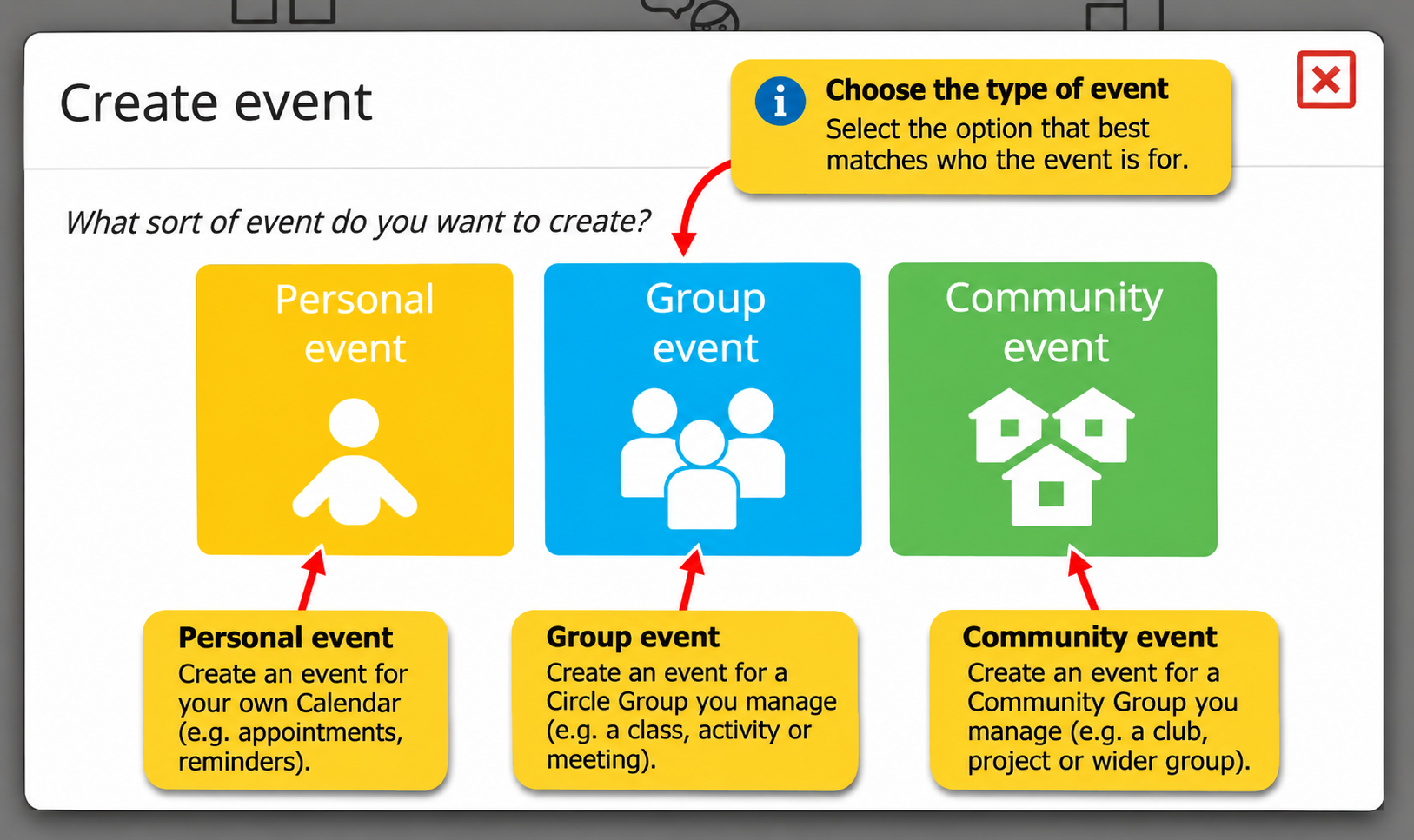
Creating a Group Event
Option 1 – From My Calendar
Open My Calendar.
Click New Event.
Choose Group event or Community event.
Select the Group you want to create the event for.
Enter the event details, including whether it is a single or repeating event.
Save the event.
Option 2 – From the Group or Community Page
Open the Circle Group or Community Group you manage.
Choose the option to create a new event.
Enter the event details and choose whether it should repeat.
Save the event.
What Happens Next?
The event automatically appears in the Calendars of all Group members.
Members can:
Confirm attendance to let others know whether they are going.
Chat about the event through its comments.
Remove an event from their own Calendar, including a single event or repeating series.
Pausing Repeating Events
Group Admins can use the Group Holiday feature to temporarily hide repeating Group events during planned breaks, without deleting them.
Was this article helpful?
That’s Great!
Thank you for your feedback
Sorry! We couldn't be helpful
Thank you for your feedback
Feedback sent
We appreciate your effort and will try to fix the article