As a Buddy, you can help a Supported User change their Multi Me password.
Multi Me supports both character passwords and picture passwords, depending on the person's needs.
How to change their password
Go to the Supported User’s profile.
Click Manage [User] in the menu on the left.
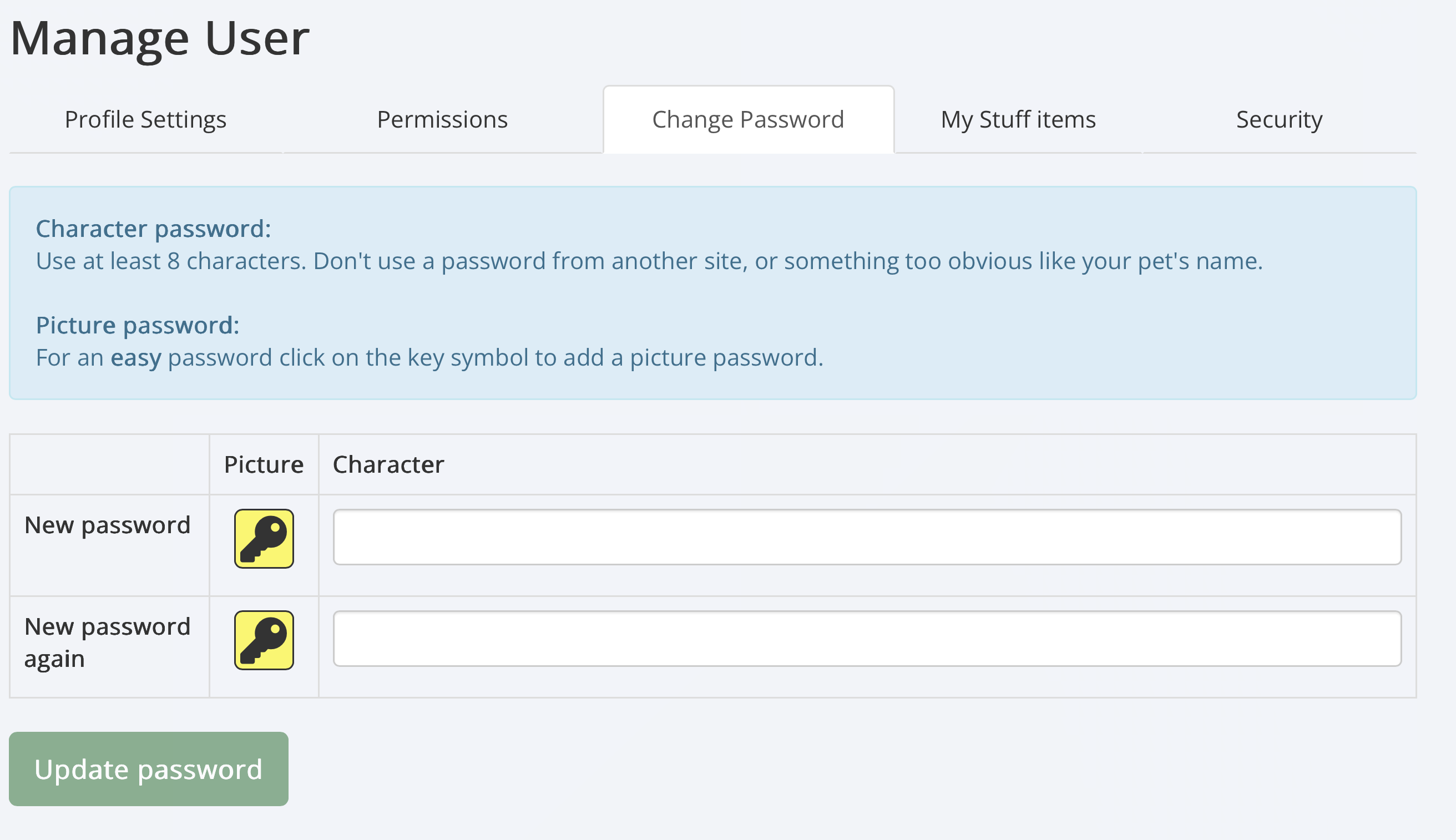
Select the Change Password tab.
Choose the type of password you want to set:
Character password: Enter a new password of at least 8 characters.
Picture password: Click the yellow key icon to create a picture password.
Enter or select the new password again to confirm it.
Click Update password to save.
Keeping their account secure
Choose a password that is difficult for others to guess.
Do not reuse passwords from other websites.
Keep the password private and only share it with authorised people who need to support the user.
Picture passwords can make signing in easier, but should still be chosen carefully.
Important: Multi Me also supports two-step sign-in for additional account security. This is particularly recommended for staff and anyone accessing sensitive personal information.
Was this article helpful?
That’s Great!
Thank you for your feedback
Sorry! We couldn't be helpful
Thank you for your feedback
Feedback sent
We appreciate your effort and will try to fix the article