As a Buddy, you can help manage a Supported User's account, including their profile details, permissions, password, dashboard and security settings.
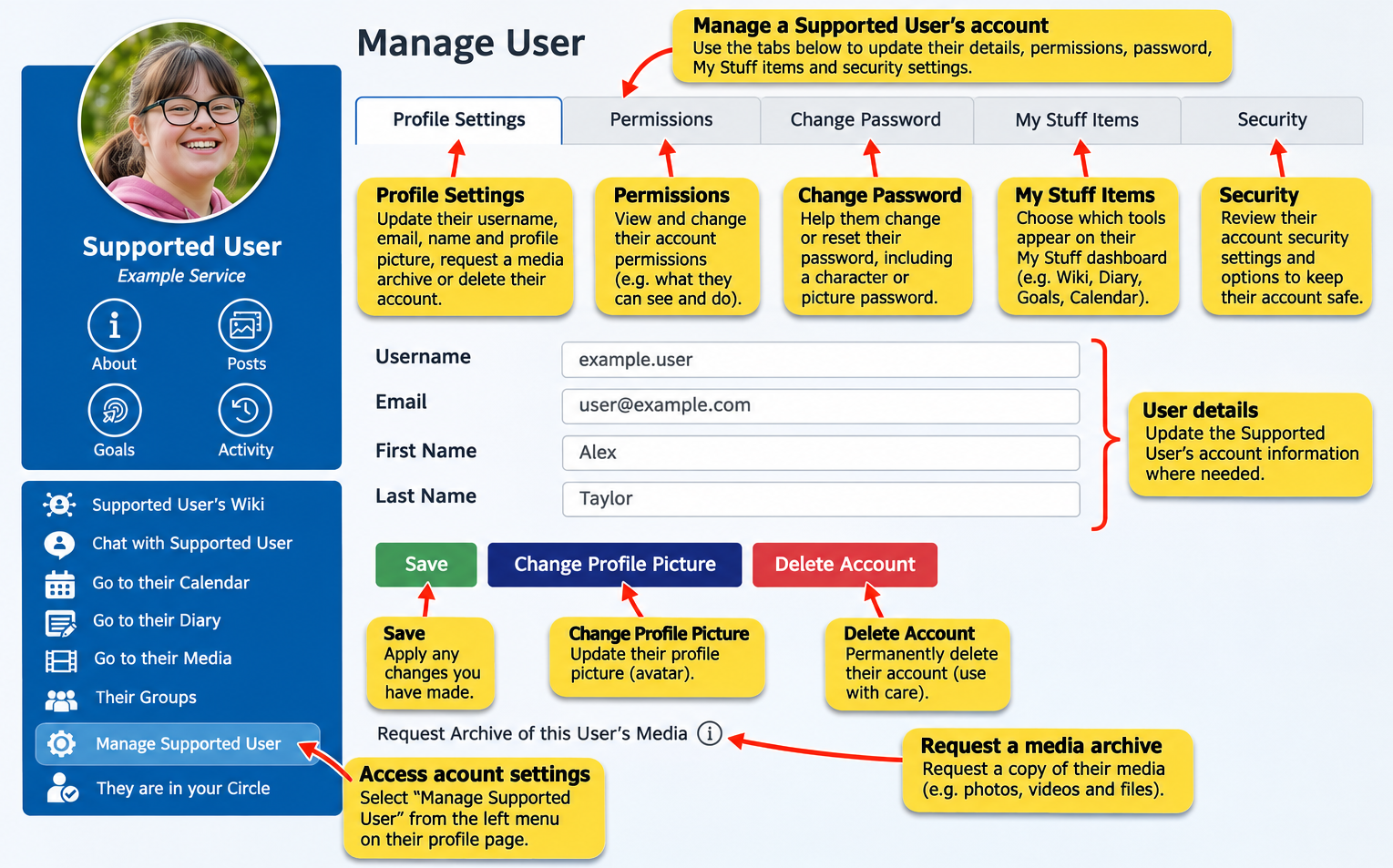
How to access their Account Settings
Open the Supported User's profile page. You can find them using Search or through My Circle.
In the blue menu on the left, select Manage [User's Name].
This opens the Manage User page, where you can choose from five settings tabs.
What can you manage?
1. Profile Settings
Here you can:
Change the user's username.
Update their email address.
Edit their first and last name.
Change their profile picture.
Request an archive of their Media.
Delete their account.
Select Save after making changes.
2. Permissions
View and manage the Supported User's account permissions.
These settings control aspects of how their account can be used.
3. Change Password
Help the Supported User change or reset their password, including their character or picture password.
4. My Stuff Items
Choose which Multi Me tools appear on the Supported User's My Stuff dashboard.
This can help simplify their experience by showing the tools most relevant to them.
5. Security
Review the Supported User's account security settings and available options for keeping their account secure.
Important
Only make changes that are appropriate for the Supported User, involving them in decisions wherever possible.
Be particularly careful when changing permissions, passwords or deleting an account.
Was this article helpful?
That’s Great!
Thank you for your feedback
Sorry! We couldn't be helpful
Thank you for your feedback
Feedback sent
We appreciate your effort and will try to fix the article