As a Buddy, you can check which devices are signed in to a Supported User’s Multi Me account and sign them out when necessary.
This helps keep their account and personal information secure.
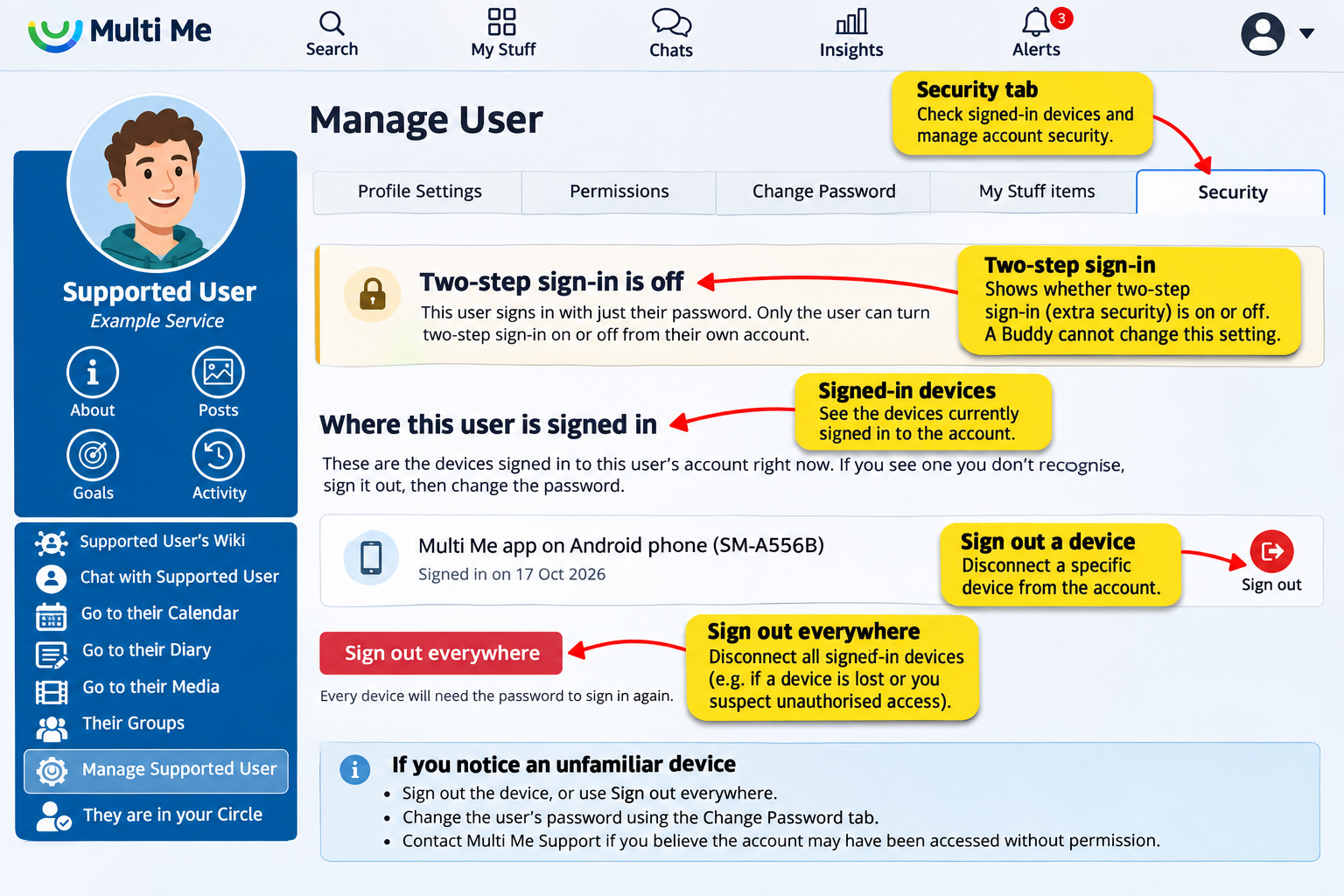
How to access their security settings
Go to the Supported User’s profile.
Click Manage [User] in the menu on the left.
Select the Security tab.
Managing signed-in devices
Under Where [User] is signed in, you can see the devices currently signed in to their account.
You can:
Sign out a device: Click Sign out beside a device you want to disconnect.
Sign out everywhere: Click Sign out everywhere to disconnect all signed-in devices.
The user will need to sign in again with their password on any device that has been signed out.
Two-step sign-in
The Security tab also shows whether the Supported User has enabled two-step sign-in.
For security reasons, only the Supported User can turn two-step sign-in on or off from their own account. A Buddy cannot change this setting on their behalf.
If you notice an unfamiliar device
If you see a device you do not recognise:
Sign out the unfamiliar device, or use Sign out everywhere.
Change the Supported User’s password using the Change Password tab.
Contact Multi Me Support if you suspect someone has accessed the account without permission.
Related guides:
Was this article helpful?
That’s Great!
Thank you for your feedback
Sorry! We couldn't be helpful
Thank you for your feedback
Feedback sent
We appreciate your effort and will try to fix the article