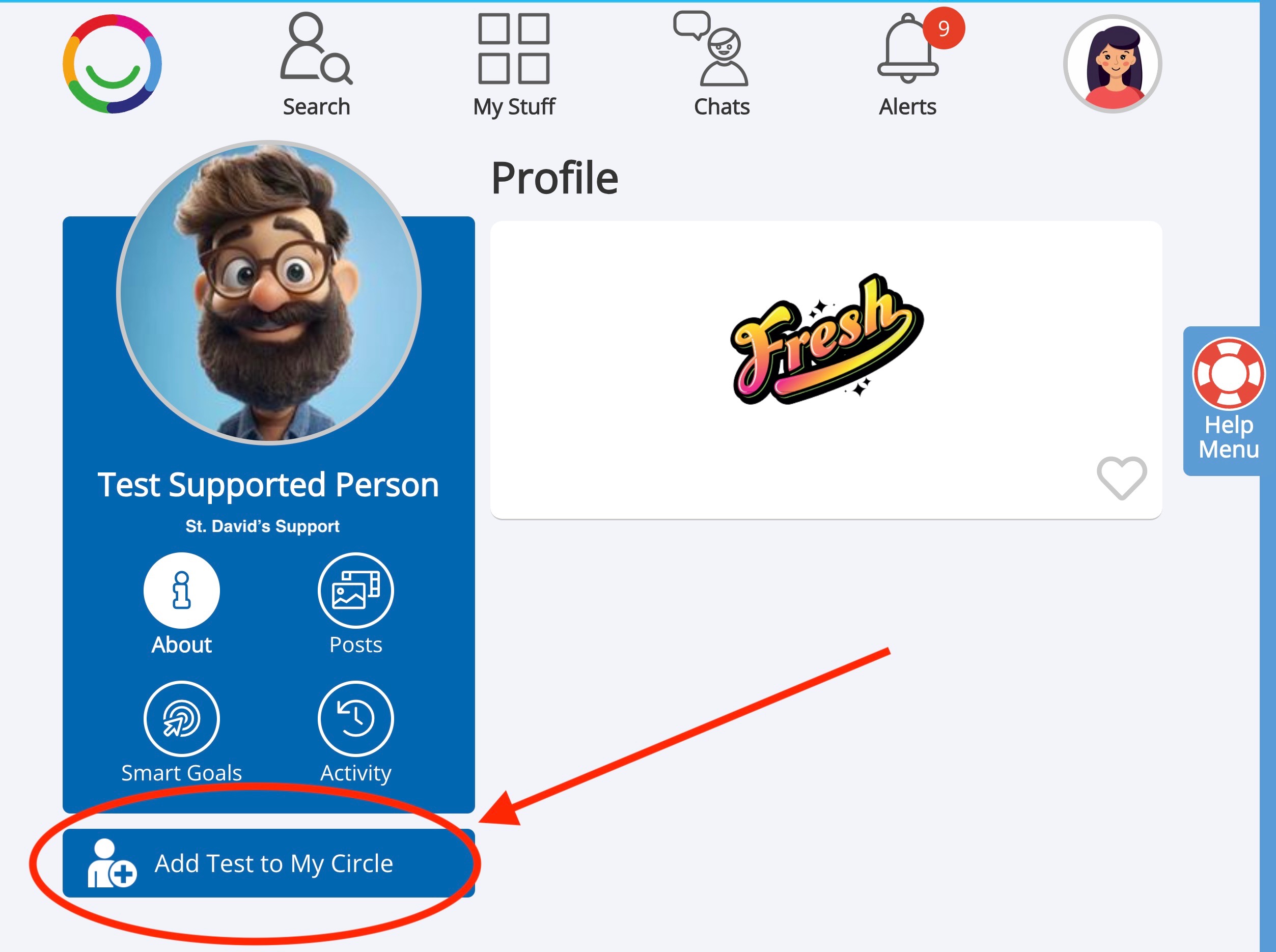
Go to the user’s profile page.
Click Add User to My Circle.
Click Yes on the confirmation pop-up.
Choose which Circle category they should appear in:
Friends
Family
Support
Other
(Optional) Add their role.
Example:
Category: Support
Role: Weekends
Click Invite.
What Happens Next?
The person will receive a notification inviting them to join your Circle.
Depending on your portal settings, your Buddy may need to approve the invitation before the person is added.
Access and Privacy
People added to your Circle do not automatically gain access to your private information.
By default, Circle members:
Can see posts, messages, and updates shared with the Circle
Cannot access private content such as Wikis, Diaries, Goals, or other personal areas unless permissions are later granted
Related Help Articles
See also:
FAQ: Why can't I see anybody to add to my Circle?
How to Invite Someone Without a Multi Me Account to Join a Circle
How Circle Permissions Work
Managing Circle Access and Roles
Was this article helpful?
That’s Great!
Thank you for your feedback
Sorry! We couldn't be helpful
Thank you for your feedback
Feedback sent
We appreciate your effort and will try to fix the article