The Filter feature allows you to choose which Goals are displayed on your Goals page.
You can use it to find particular Goals, including those belonging to Supported Users you help manage.
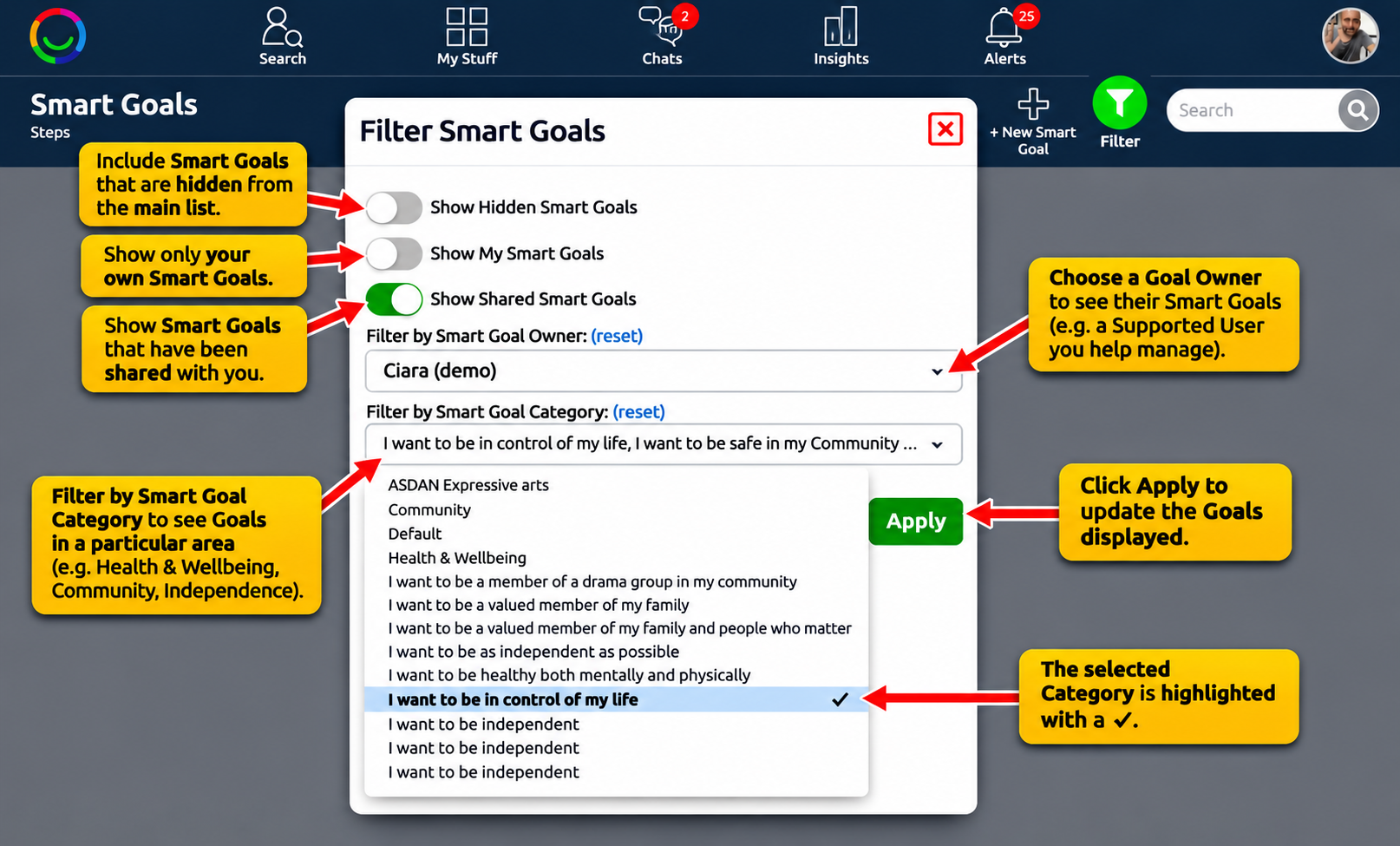
How to Filter Goals
Open My Goals, or go to a Supported User's Smart Goals page.
Click the Filter (funnel) icon at the top of the page.
Choose the options you want to apply:
Show Archived Goals – include Goals that have been archived.
Goal Owner – show Goals belonging to a particular person.
Goal Category – display Goals within a selected category.
Click Apply to update the Goals displayed.
Removing a Filter
Click Filter again and select Reset Filter to return to the default view.
Useful to Know
The Filter icon turns green when a filter is active.
Filtering only changes which Goals you see on the page. It does not change the Goals themselves or anyone's access permissions.
You can only view Goals you have permission to access.
Was this article helpful?
That’s Great!
Thank you for your feedback
Sorry! We couldn't be helpful
Thank you for your feedback
Feedback sent
We appreciate your effort and will try to fix the article