You can copy an existing Step from one Goal into another Goal, including its details and attachments.
This saves time when creating similar Steps across different Goals or for different people you support.
How to copy a Step
Open the Goal you want to copy the Step into.
Click Step Wizard.
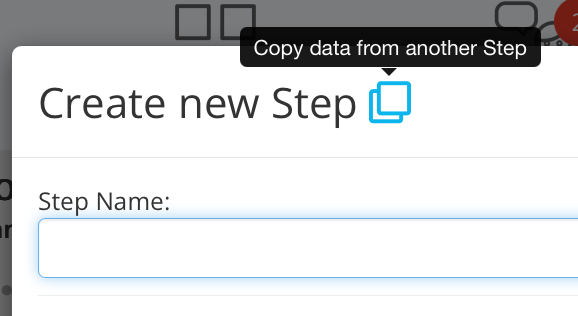
In the Create New Step window, click the Copy icon (two overlapping squares).
Select the Goal containing the Step you want to copy.
Select the Step you want to copy.
Review the copied information and make any changes you need.
Follow the remaining steps in the wizard to set dates and assign the Step.
Click Create Step to finish.
The copied Step will now appear in your chosen Goal.
Why is this useful?
For example, if several people are working towards becoming more independent, you might have already created a Step called "Learn how to use public transport".
Rather than creating the same Step again, you can copy it into another person's Goal and adapt it to their individual needs.
Tip: Always review the copied Step to make sure its information, attachments and assigned person are appropriate for the new Goal.
Was this article helpful?
That’s Great!
Thank you for your feedback
Sorry! We couldn't be helpful
Thank you for your feedback
Feedback sent
We appreciate your effort and will try to fix the article