Role Based Access (RBA) makes it easier for organisations to manage who can access information on Multi Me and what they are allowed to do.
Instead of giving everyone the same level of access, your organisation can create its own roles that reflect the way your teams actually work.
For example, you might create roles for:
Support Workers
Key Workers
Agency Workers
Team Leaders
Service Managers
Senior Managers
Teachers or Teaching Assistants
CEOs or other senior staff
Each role can be given appropriate Read, Write or Admin permissions, controlling what people with that role can access and do within Multi Me.
This can include access to a Supported User’s Wiki, Diary, Calendar and other areas of their Multi Me account.
Senior management roles can also be given appropriate access to higher-level Insights and Reports, where these are available.
The aim is to make access easier to manage while ensuring that people only have the level of access appropriate to their role.
How does Role Based Access work?
Role Based Access is managed through RBA Tables.
An RBA Table connects:
Supported Users + Staff Roles + Permissions
A table might represent one Supported User and the people who support them, or a group of Supported Users who share a support team.
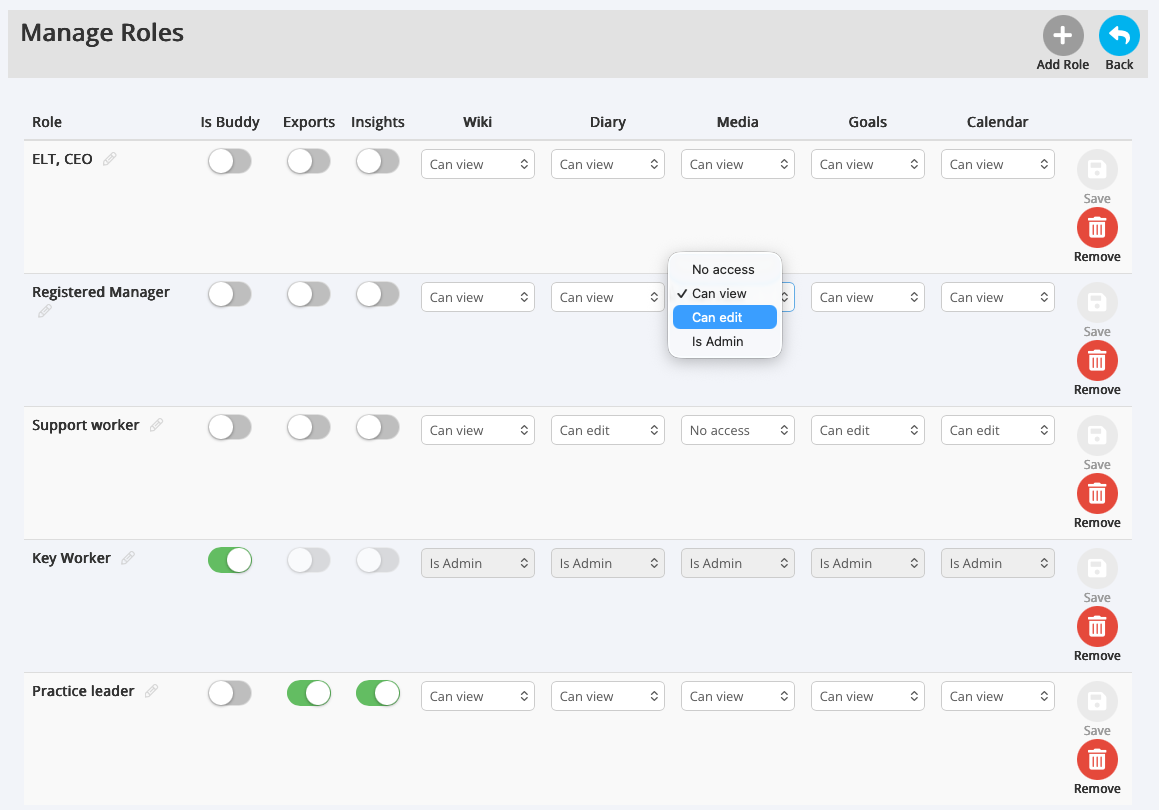
1. Create your organisation's roles
Portal Admins can create roles that reflect the roles within their organisation.
For example, an organisation might create separate roles for Support Workers, Key Workers, Agency Workers and Service Managers.
Each role can then be given the appropriate Read, Write or Admin permissions.
This means you don't have to manage every member of staff individually. Their access can reflect the role they have within your organisation.
2. Create RBA Tables
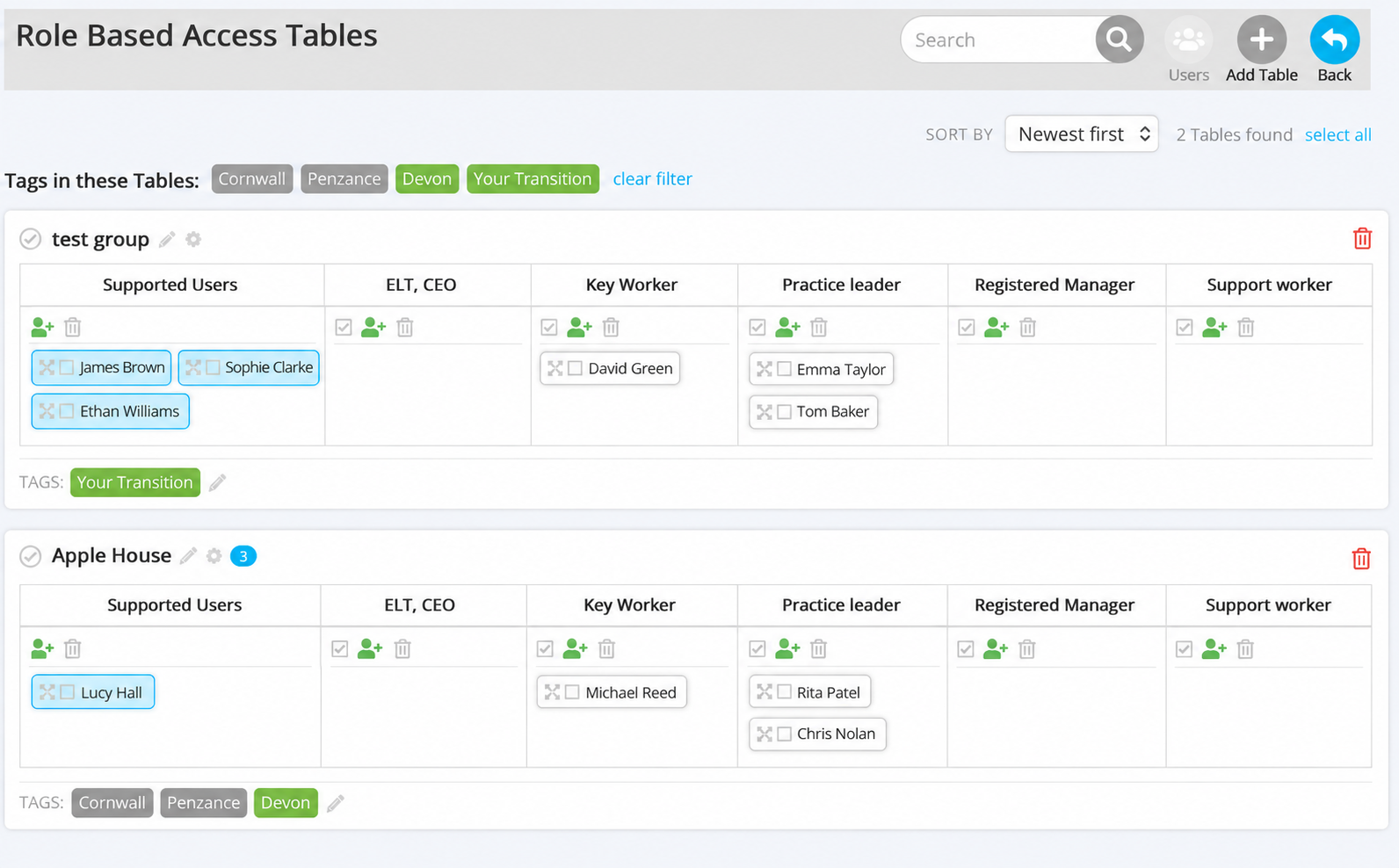
Portal Admins can create RBA Tables that connect Supported Users with the staff and roles that need access to their information.
When creating a new table, you start by selecting:
One Supported User
One RBA User
Once the table has been created, it can be edited to include additional Supported Users and multiple RBA Users.
For example, you could have:
One Supported User + their support team
or
Several Supported Users + the staff team supporting them
This makes RBA Tables flexible enough to represent different types of services, including supported living, residential services, schools and other organisational structures.
3. Use Tags to organise your tables (optional)
Each RBA Table can be given Tags to make tables easier to organise, search and filter.
For example, an organisation operating supported living services across Gloucestershire might use location Tags such as:
Stroud
Gloucester
Cheltenham
You could also use Tags to represent departments, services, teams or other structures within your organisation.
This becomes particularly useful for larger organisations managing many Supported Users, staff and services through a single Multi Me Portal.
4. Give other staff Table Admin access (optional)
Portal Admins don't have to manage every RBA Table themselves.
A Portal Admin can assign one or more people as Table Admins for an individual table.
A Table Admin can then manage that table without needing the much wider permissions of a Portal Admin.
For example, a Service Manager could be made the Table Admin for the service they manage. They could then keep their Supported Users and staff team up to date without needing access to administer the whole Multi Me Portal.
Users who are Table Admins can access the tables they administer through a link under the Help menu.
Why use Role Based Access?
Role Based Access gives organisations more flexibility and more control over access to information on Multi Me.
It allows you to mirror the structure of your organisation within Multi Me, so that access can be based on people's actual roles and responsibilities.
As teams change, Supported Users move between services, or staff join and leave, RBA Tables can be updated without having to redesign the whole access structure.
This helps make managing access simpler, more efficient and more appropriate to each person's role.
In simple terms
Think of it like this:
Roles define what someone is allowed to do.
RBA Tables define which Supported Users they can do it for.
Tags help you organise and find those tables.
Table Admins allow responsibility for managing individual tables to be delegated to the appropriate people.
Was this article helpful?
That’s Great!
Thank you for your feedback
Sorry! We couldn't be helpful
Thank you for your feedback
Feedback sent
We appreciate your effort and will try to fix the article