As a Wiki Admin or Buddy, you can create a secure access link to allow someone to view selected parts of a Supported User's Wiki.
This is useful when you want to share Wiki information with someone who does not have a Multi Me account.
Access links are password protected, have an expiry date and provide viewing access only.
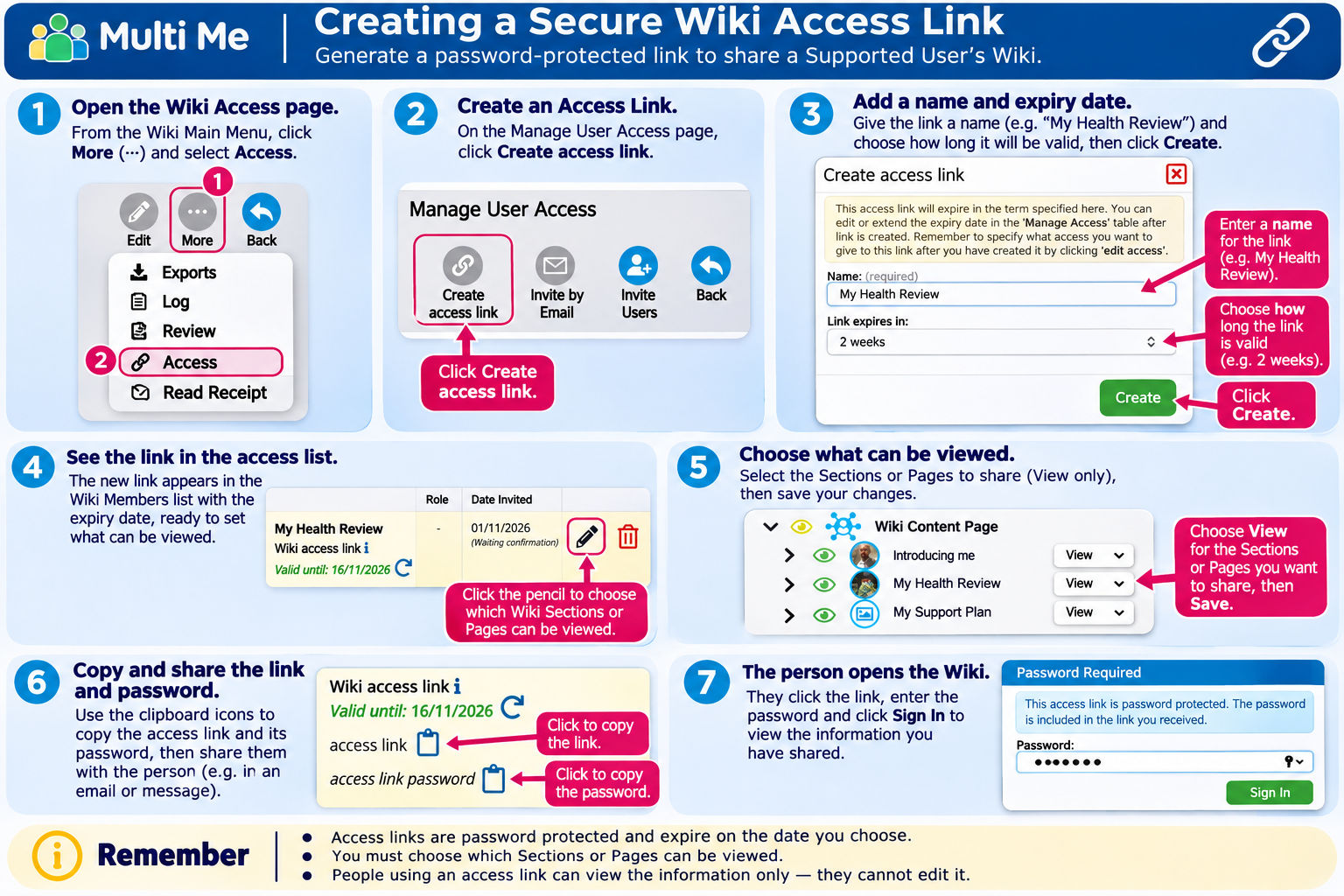
1. Open the Wiki Access Page
Open the Supported User's Wiki Main Menu.
Click More (three dots).
Select Access.
The Manage User Access page will open.
2. Create an Access Link
Click Create access link at the top of the page.
Complete the details requested.
Choose how long the link should remain valid.
Create the access link.
The new link will appear in the Wiki access list.
3. Choose What Can Be Viewed
Before sharing the link, choose which parts of the Wiki the recipient can see.
Find the new access link in the Wiki Members list.
Click the pencil icon under Access given.
The Wiki's Sections and Pages will appear.
Use the eye icons to select the Sections or Pages you want to share.
Expand Sections using the arrow icons to select individual Pages.
Save your changes.
Important: Access links provide viewing access only. Recipients cannot edit Wiki content.
4. Share the Access Link
Find the access link in the Wiki access list.
Use the clipboard icons to copy the link and its password.
Share the link with the intended recipient.
Provide the password securely.
The recipient can open the link, enter the password and view the information you have shared.
They do not need a Multi Me account.
5. Managing Access Links
From the Manage User Access page, you can:
Check when an access link expires.
Change which Wiki Sections or Pages can be viewed.
Copy the link and password.
Renew or refresh access where available.
Remove access using the red bin icon.
Remember
Access links are password protected and expire after the selected period.
You must choose which Wiki Sections or Pages can be viewed.
Recipients can view but not edit the shared information.
Only share links with people who are authorised to see the information.
Involve the Supported User in decisions about sharing wherever possible.
Was this article helpful?
That’s Great!
Thank you for your feedback
Sorry! We couldn't be helpful
Thank you for your feedback
Feedback sent
We appreciate your effort and will try to fix the article